

Why Does a Tableau PDF Export Omit Rows or Dashboard Content?
A Tableau PDF can omit rows because it captures a scrolling portion of the dashboard, or omit an object because that object is unsupported in PDF. Compare the missing content with the actual worksheet and export settings before choosing a correction.
For example, the stock-close PDF is missing its final SKU rows and an embedded web panel. Those two omissions may need different remedies. Once the required content has an acceptable document representation, Advanced Tableau Report Scheduler (ATRS) can maintain the recurring PDF and its delivery.
- THE DIRECT ANSWER Find the missing rows and unsupported objects separately
- REQUIREMENTS AND LIMITATIONS Choose the correction that matches the omission
- END-USER WORKFLOWS Make the corrected document recurring in ATRS
- DEVELOPER AND API WORKFLOWS Maintain the rendering settings and request the accepted PDF
- CHOOSE YOUR NEXT STEP Evaluate delivery with the document the reader needs
Find the missing rows and unsupported objects separately
Start with the final row the reader needs. Record the source, selected sheet, filters and export method, then compare the PDF with the expected stock table. This makes it possible to distinguish a clipped table from a sheet that was never selected.
Tableau’s scrolling-dashboard guidance explains that a dashboard PDF may include only the displayed part of a scrolling view. Exporting the worksheet is a documented alternative. For the stock table, compare a representative long worksheet export with the dashboard snapshot and inspect its final required SKU and total.

Use the final required row, totals and readable page layout to judge whether the document meets the reader’s requirement.
Investigate the web panel separately. The current Tableau export guidance states that dashboard web page objects are omitted from PDF, and extensions and Pulse objects do not render in PDF or PowerPoint. Support for eligible objects in Tableau Cloud image exports does not make those same objects available in PDF.
For this document, an accepted worksheet export may provide the complete stock rows, while the web panel needs another approved representation or a link in the accompanying message. Agree that treatment with the reader before automating the document.
Identify each omission
Rows: Name the final required row in the stock table.
Sheets: Check which content the export selected.
Objects: Identify web panels, extensions or other unsupported elements.
Period: Compare the report’s close date with the source.
Choose the correction that matches the omission
| What you see | What to check | Appropriate response |
|---|---|---|
| Last rows missing from a scrolling dashboard | Compare the actual worksheet export with the dashboard snapshot. | Choose a source layout that includes the required rows and validate the last row. |
| Large Cloud worksheet incomplete with Unspecified paper size | Check the documented Tableau Cloud paper-size issue. | Try A4 or Letter for that case, then inspect every required page. |
| Web panel, extension or Pulse area blank | Check whether the object is supported in PDF. | Use an approved supported representation or separate communication. |
| Automation looks different from a browser export | Compare source sizing and actual export settings. | Use a deliberate layout and test the automated output itself. |
| Correct pages contain yesterday’s data | Check report inputs, source readiness and reporting account. | Resolve the data-period issue separately from page layout. |
The Cloud issue involving Unspecified page size has a specific published workaround: choose A4 or Letter for the affected large worksheet export. Use that workaround for the identified large-worksheet symptom; investigate scrolling content and unsupported objects through their own paths.
For an ordinary manual download, Tableau lets you select the view or sheets, scaling, paper size and orientation. Change one relevant setting at a time and compare the resulting document with the approved reference. A larger page that merely shrinks labels beyond readability does not meet the requirement.
When every transaction row is required, assess whether a data file or a separately designed worksheet is more suitable than a compact interactive dashboard PDF. Choose the representation for the document the reader needs, even if its layout differs from the interactive dashboard. Retain the account and recipient permissions appropriate to that output.
Choose the relevant remedy
Scrolling: Compare the worksheet export with the dashboard snapshot.
Paper size: Use the Cloud workaround for its identified symptom.
Readability: Inspect page breaks and labels after a layout change.
Representation: Agree an alternative for content unsupported in PDF.
Make the corrected document recurring in ATRS
Use the accepted source and layout to configure a Single Report Schedule in ATRS. Select the authorized Tableau account, actual report Item Path and supported business-date inputs. Send the first stock-close PDF to a test destination so its content can be checked before normal distribution.
In the destination setup, follow the ATRS PDF output guide and choose Acrobat Format. Generate the report using the chosen source and rendering configuration. Open it in the PDF reader the recipient uses and compare the final SKU, close date and control total with the expected stock report.
Review the page breaks and labels while making that comparison. Keep a representative accepted file so a later source or layout change can be checked against the same requirement. For the omitted web panel, confirm that the separate representation or accompanying link is included in the agreed handoff.
If the receiving process requires PDF passwords, permissions or a watermark, apply those finishing options and check the resulting document again. The ATRS PDF workflow covers that stage. Confirm that the intended recipient can open and use the finished PDF.
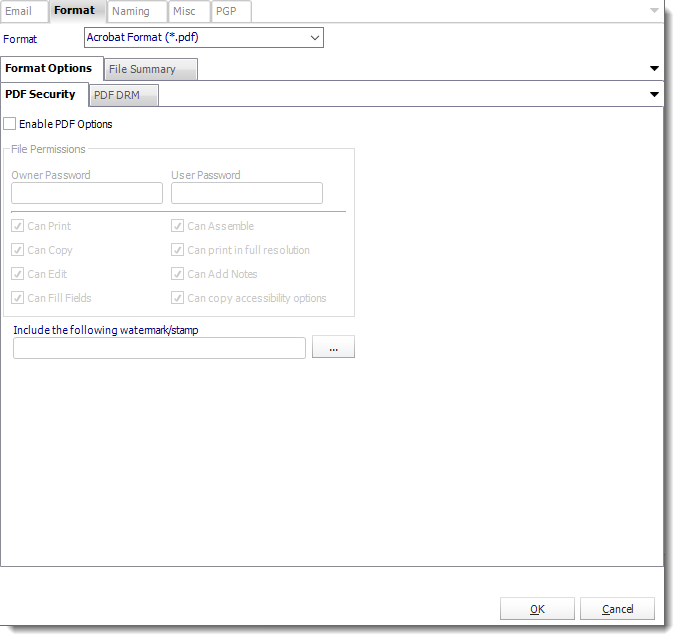
These PDF options concern document finishing. Apply the required protection or watermark only after checking the report content.
When assembling several PDFs, inspect each source document before combining them. The delivered result should contain the accepted pages and open as expected at its destination. ATRS can then repeat the configured production and delivery job without the reader relying on an unchecked dashboard snapshot.

Accept the recurring document
Content: Check the final SKU, business date and control total.
Web panel: Include the agreed alternative or accompanying link.
Finishing: Apply required protection after the content is accepted.
Delivery: Open the finished file at the intended destination.
Maintain the rendering settings and request the accepted PDF
Your application can request the corrected stock-close PDF once its source and layout have been checked. Start with the document requirement: the final stock row, readable pages and the agreed treatment of the web panel. The API request should produce that saved result rather than attempt to repair missing content during delivery.
When maintaining a supported single-schedule rendering configuration, the documented ClientRenderingSettings object includes orientation, pageSize, renderWidth, renderHeight and applySettings. For example, the documented page sizes include A4 and Letter, and orientations include Portrait and Landscape. Choose relevant settings against the diagnosed layout problem and check the actual generated PDF.
Use these fields within the complete SingleSchedule/Update definition when your application maintains those settings. Preserve its other rendering values, report parameters, valid dates and destination collections. Sending only the changed page settings is not a complete update, and the read response omits some write settings; keep the full configuration your application maintains.
Those rendering fields do not establish that a scrolling dashboard will include every row or that an unsupported object can appear. The worksheet or alternative representation chosen earlier still matters. After any layout change, check a long PDF with the final required row before returning the job to normal use.
To request the existing ordinary single-report job, replace 101 with its actual UniqueId below. Use the ATRS HTTPS address and a server-held token, and authorize the application user for this report:
POST /api/Schedule/ExecuteScheduleAsync
Authorization: Bearer <ATRS-access-token>
Content-Type: application/json
{"ScheduleType":"report","UniqueId":101,"RunBy":"API"}Keep the returned ExecutionId with the close date. Follow it through GetExecutionStatus and parse the JSON-encoded ResultJson; Completed can contain Result=false. Check the produced pages and configured destination before confirming that the requested document is ready. The execution response itself is tracking information, rather than the PDF bytes.
If a response is uncertain, inspect the earlier execution and delivered file before requesting another copy; no documented idempotency key prevents duplicates. The ATRS Developer Hub provides authentication and the full single-schedule and execution contracts.
Maintain the PDF configuration
Rendering: Choose documented fields for the diagnosed layout issue.
Update: Preserve the complete schedule and destination settings.
Sample: Review a long PDF after relevant configuration changes.
Execution: Check the result and document before confirming readiness.
Evaluate delivery with the document the reader needs
For the stock-close document, resolve the final-row omission and the unsupported web panel through their appropriate source and representation choices. Then evaluate the ATRS PDF workflow for maintaining that accepted document’s schedule, naming and delivery.
Keep the representative long report as the reference when the source or rendering configuration changes. That gives the report owner and recipient a shared basis for approving the next recurring version.
Considering ATRS for recurring PDFs? Download the ATRS Internal Evaluation Guide and bring the document the reader needs when reviewing deployment and delivery with your team.
Contributors:
Christian Ofori-Boateng
CEO, ChristianSteven Software

