POWER BI QUESTIONS

Why Power BI Subscription Emails Fail and How to Fix Them

If a report email is missing, check whether the subscription is active and whether its owner can open the report. Then check the expected timing and follow the message through the mail system.

For a job running in PBRS, History View and Error Log help you find the affected run and destination. This page walks through one missed Monday report so you can choose a correction that addresses the cause.

  
THE DIRECT ANSWER

Identify What Failed Before Recreating the Subscription

Start with the affected subscription and its owner’s access to the report. Those checks help you decide whether to investigate the reporting job, the generated output or email delivery.

Imagine the Operations Summary normally arriving before Monday’s meeting. This week, one manager has no preview. Start with that specific job and recipient; a clear question is easier to answer than “Power BI email is broken.”

Find the stage that needs attention

If Subscribe is unavailable, check eligibility and tenant settings. If an existing job stopped, review its active state, end date and owner. If the email arrived with an error or incomplete preview, examine the report’s rendering.

A received email with a broken link needs an access or content check. A preview showing last week’s period needs a data-readiness check. Sending the same email again will not correct either problem.

Keep the useful details together

Record the job name, report or dashboard, workspace, owner, affected recipient and expected delivery window. Save the exact error text before editing. Microsoft’s subscription troubleshooting guide is the reference for native service jobs.

Use the current job where possible. Creating another can leave two subscriptions sending when the original resumes. Replace it when the evidence and reporting requirement justify that choice.

Use the history for the system running the job

PBRS, ChristianSteven’s report automation software, provides reporting-run history and error detail for its own schedules. A Partial Success result helps you find an affected report or destination. These records make a PBRS reporting job easier to investigate.

This workflow covers the Power BI service. On-premises Report Server mail and dynamic recipient mapping have their own specialist workflows.

Start with one missed report

Use a named job, recipient and expected window. That gives each check a clear purpose.

Keep the exact error

Capture the original wording before changing settings. It helps the owner or support team choose the right repair.

Distinguish delivery from content

A missing message, broken link and old reporting period need different checks.

Review the existing job

Correct the known subscription before creating another that could send duplicate email.

  
REQUIREMENTS AND LIMITATIONS

Use the Symptom to Choose the Next Check

Use the symptom to pick your next check. The PBRS column applies when the reporting schedule runs through PBRS; a native subscription remains a service job.

What you observe Native Power BI subscription PBRS reporting job
Subscribe unavailable or job stopped Review user eligibility, tenant scope, owner, licence, enabled state, end date and authentication. Restore the approved access path. Review the PBRS schedule and its run records; use the relevant error to identify the affected access or configuration step.
External recipient receives nothing Confirm eligible paid non-PPU capacity. Trial and PPU external suppression is intentional. Review the approved email destination and actual error. The job still needs authorised source access and a working mail route.
Preview or attachment has errors Open the same page; check rendering, parameters, attachment eligibility and the exact error. Inspect the failed report or destination in History View and its Error Log detail; verify the generated file.
Expected after-refresh send is missing Check the first scheduled refresh of the UTC day; native After data refresh does not send after every refresh. Compare the run with the job’s configured timing or refresh workflow; investigate its recorded failure.
One mailbox has no email Check the actual recipient and sender, junk, quarantine and mail trace. Review the affected destination result, then investigate the same recipient through the mail system.
Email arrives but its link fails Check that content exists and the recipient can open it independently. Check the actual link and recipient access; resending cannot grant missing access.

Native subscription requirements define owner, recipient and output eligibility. Tenant export and sharing settings control the relevant user scope, subscription, external audience and export features.

Check changes that can stop an established job

A deleted owner account, expired licence, deleted report or authentication failure can end delivery. Password resets, token invalidation and multifactor authentication changes can interrupt the saved credentials. Multifactor authentication is the extra verification step used at sign-in.

Authentication failure can also prevent the disablement warning from arriving. Inspect the actual enabled state even when nobody received a notification.

Match the route to the audience

An inbox rule cannot make a trial or Premium Per User workspace eligible for external native delivery. Establish whether the audience and output fit the route before changing mail settings. Record an unconfirmed result as unknown until it is checked.

Check the required audience

Verify recipient and output eligibility first. Deliberate capacity restrictions need a suitable delivery route.

Inspect the owner’s access

Check account, licence and authentication changes even if no warning email arrived.

Check the expected timing

Compare the schedule with the actual refresh result and UTC day boundary.

Follow the observed result

Use the error or message outcome to choose a correction. Keep an unknown result visible.

  
END-USER WORKFLOWS

Run One Controlled Diagnostic and Retest the Correction

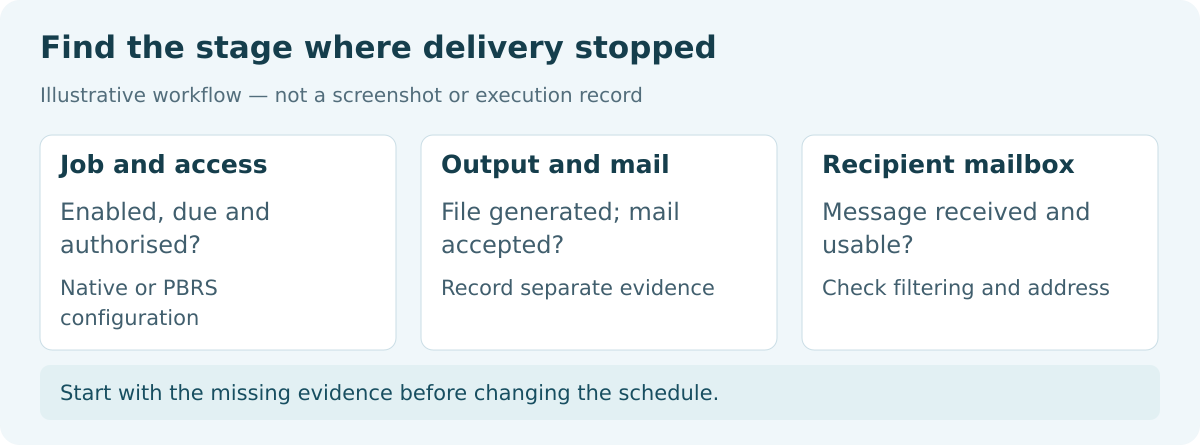
Diagnostic checks for a missed Power BI email, from subscription settings through output and mailbox delivery.

Start with the missing evidence before changing the schedule.

Work through the missed Monday preview in order. Each step answers a question about that delivery, rather than changing several unrelated settings at once.

  1. Is the job still active? Open the subscription and check owner, recipients, enabled state, start/end dates, frequency and time zone. Retain the settings before editing.
  2. Can the owner still use it? Ask the authorised owner or administrator to review account, licence and authentication changes, including password resets, token invalidation and multifactor authentication failures.
  3. Does the intended report render? Open the same page as the owner and inspect errors and reporting period. For a paginated report, verify the required parameters.
  4. Does the output qualify? Review preview and full-attachment requirements for the report type and workspace. Count hidden pages when investigating a page-limit error.
  5. Was a send expected after this refresh? Check the model’s refresh result. Native After data refresh sends after the first scheduled refresh of the UTC day.
  6. What happens in a controlled test? Use Run now after those prerequisites are checked. It does not refresh the model. Record the time and result; respect the hourly test limit instead of repeatedly sending.
  7. Where did the message go? For absent mail, ask the mail administrator to trace the recipient and time window. Review junk, quarantine and routing rules within the organisation’s mail policy.
  8. Did the correction work? Apply the change supported by the findings. Confirm that the same recipient receives the correct output and can use any required link. Observe the next scheduled delivery.

Include both possible native senders

During the phased email-platform migration, successful updated-method sends show the owner as sender. Previous or fallback sends can use no-reply-powerbi@microsoft.com. Review both sender patterns in mail rules and preserve the historical sender rule.

The migration icon identifies the subscription’s migration state. Check the individual message for the actual sender; the icon cannot establish the path of every send.

Use mail trace to answer the mailbox question

Exchange Online message trace follows message processing and delivery status. The authorised mail administrator searches the observed sender, affected recipient and correct time window. A delivered or sent record does not establish that the person read the report.

In our illustrative case, an owner authentication error directs the first correction to access. A clean controlled send followed by a missed scheduled run directs the next check back to timing, expiry or refresh prerequisites.

Check a PBRS-owned job in PBRS

For the same reporting obligation running through PBRS, open History View, inspect the affected run and expand Partial Success to the failed report or destination. Use Error Log for the corresponding detail. The next chapter shows how to keep that finding useful for support.

Run one useful test

Record its time, recipient and result. Repeated instant sends can obscure the original problem.

Use the actual sender

Allow for owner and historical/fallback patterns during migration, then inspect the individual message.

Inspect what arrived

Check the preview or attachment and reporting period, plus required link access.

Verify the scheduled delivery

A correct manual test is useful. Also observe the next scheduled run before closing the problem.

  
DEVELOPER AND API WORKFLOWS

Keep an Incident Record That Supports Escalation

A developer or support team needs a concise record connecting settings, report output and mail findings. Administrative change logs show recorded actions; they are not a universal native per-recipient delivery-status API.

Keep a record the next person can use

This illustrative record preserves the details of the Monday example. Fill it with observed values and leave missing evidence marked unknown.

Illustrative subscription incident record
subscription: Weekly Operations preview
workspaceAndContent: verified identifiers
expectedWindow: agreed local window plus UTC equivalent
owner: verified reporting owner
recipient: affected approved mailbox
observedError: exact text, or no error observed
configurationEvidence: timestamped settings review
reportEvidence: page, period and render result
mailEvidence: message or trace reference, if available
correction: evidence-based change
retest: received output and next scheduled run
status: open until the required evidence is recorded

For an unresolved native failure, include the job, expected window, recipients, exact error and mail findings. State whether the content renders and whether the controlled test arrived. Keep passwords, access tokens and unrelated report data out of the support record.

Inspect the PBRS failure in detail

  1. Open System Monitor > History View. Select the relevant run and expand Partial Success to find the affected report or destination.
  2. Open System Monitor > Error Log. Search for relevant entries and select the error to read its details in the opposite pane.
  3. Use Copy error to retain the exact wording with the run, time and affected destination.
  4. Compare the run and mail findings before deciding whether to retry. An uncertain send may already have reached the mail system.

PBRS keeps these operational records for jobs it runs. Its history does not repair a native subscription running outside PBRS, but it gives a recurring PBRS file-delivery job an identifiable run and failure detail.

Choose the next action from the findings

If the controlled send arrives and the scheduled run does not, review timing, duration and refresh prerequisites. If the controlled send fails, follow its report or mail error. Reconcile uncertain delivery before sending another copy, and record the retry decision.

Keep identifiers and times

Connect the job, recipient and exact error with its expected window and UTC equivalent.

Connect the evidence

Retain settings, rendering and mail findings together while keeping their meaning clear.

Expand the affected PBRS run

Use destination detail and the corresponding Error Log entry to identify the part needing attention.

Decide before retrying

Check an uncertain mail result first. The recipient may already have the first copy.

  
CHOOSE YOUR NEXT STEP

Repair the Native Job or Choose a Different Delivery Route

Repair the native subscription when its audience and output fit the service and the findings point to a correctable owner, report, setting or mail-route problem.

Choose PBRS when the recurring job needs prepared files, maintained destinations and reporting-run operations together. History View and Error Log help the owner investigate that PBRS job rather than reconstructing its story from scattered settings.

Start with one representative report and recipient. Verify the generated output, reporting period and next scheduled delivery. Keep a named owner responsible for that recurring result.

Explore Power BI Report Automation.

Technical sources reviewed: 8 October 2026.

If you need a separate reporting workflow after resolving the email failure, share the guide with your colleagues to review deployment, licensing, security and your reporting requirements.

Download the PBRS Internal Evaluation Guide

Contributors:

Christian Ofori-Boateng

Christian Ofori-Boateng

CEO, ChristianSteven Software