

POWER BI QUESTIONS

Why Is Power BI Scheduled Refresh Failing or Disabled?

If Power BI scheduled refresh is failing or disabled, start with the model’s Refresh history. The recorded error usually points to the connection, gateway or processing problem that needs attention. Repair that cause, run a successful refresh and restore the schedule if it was disabled.

When the model feeds a recurring PBRS report, you can configure refresh notifications and error handling so a failed update gets attention before the reporting routine continues. PBRS helps manage that reporting response; the source owner still needs to repair an expired sign-in or an offline gateway.

  
THE DIRECT ANSWER

Follow the stale report back to the failed refresh

Imagine opening the morning operations PDF and seeing yesterday’s backlog again. In Refresh history, the latest attempt shows an authentication error. The report layout and email schedule may be working perfectly; the service can no longer sign in to the data source.

Find the exact model and failed run before changing settings. Note its time and error message, then compare it with the last successful attempt. A recent password rotation or gateway change can explain why a previously reliable routine stopped.

A disabled schedule is not always the same problem as a failed run. Four consecutive failures disable scheduled refresh, while an unrecoverable configuration problem can deactivate it sooner. An inactivity pause has a different cause: after two months without report or dashboard views, the owner is notified and the schedule can appear disabled.

If history says refresh succeeded but the report still looks old, check whether the source itself has new data and whether the report is showing the intended period. That avoids trying to repair a refresh that already completed correctly.

Use the last good run as a clue

Comparing the last success with the first failure can narrow the investigation to a recent source, credential or gateway change.

  
REQUIREMENTS AND LIMITATIONS

Use the error to find the right repair

The error or symptomWhat to investigate
Source sign-in expired or invalidRenew the credentials on the connection the service actually uses.
Gateway unavailableCheck the gateway host, source mapping and permission to use the source.
Timeout or resource errorReview processing duration, model workload and competing activity.
Unsupported sourceIdentify the provider and check whether scheduled refresh supports it.
Schedule paused through inactivityOpen a dependent report and restore the schedule as needed.

A successful Desktop refresh does not prove that the service connection is healthy. Desktop may use another account or network path. Ask the owner of the service connection to inspect the credentials that the scheduled run uses.

For a gateway problem, check that the gateway is online and that server and database mappings match the required sources. The gateway administrator can test connectivity from that machine and review access.

For a processing problem, let the recorded error guide the repair. Imported models have documented scheduled-refresh timeouts of two hours, or five hours in Premium workspaces. Reducing expensive processing or avoiding competing workloads may help; repeatedly retrying an unchanged configuration is not a general solution.

If the source is unsupported, changing its password will not make it refreshable. Identify the actual provider in Desktop’s query settings and compare it with the supported source options.

For the detailed requirements and controls, see Microsoft’s on-premises gateway troubleshooting guide.

Match the repair to the error

An authentication message, a gateway outage and a processing timeout point to different work. Start with the evidence in refresh history.

  
END-USER WORKFLOWS

Restore the connection and the reporting routine

Return to the operations report with the expired source sign-in. The owner renews the credentials through the organization’s normal process, then uses Refresh now and checks the new history entry. A known new backlog record in the report confirms that the expected data is available again.

If failures disabled the schedule, turn Configure a refresh schedule back on under Refresh → Schedule refresh and select Apply after the repair. Check the next scheduled attempt as well as the manual run. For an inactivity pause, open a report or dashboard using the model and re-enable the schedule if needed.

The model owner maintains the schedule and relevant credentials. Standard on-premises gateway sources may require the gateway administrator. Involve that person rather than changing ownership simply to get past a settings screen.

Connect the recovery to PBRS delivery

In the operations job’s Refresh Datasets settings, choose the failure notification and configure Raise an error if dataset refresh fails according to the reporting policy. Test how the deployed job responds: the responsible person should receive a useful alert, and downstream reporting should behave as intended.

After the connection is repaired, rerun the reporting job and open the delivered PDF. This ties the technical recovery back to the operations team’s need for current figures. Configured error handling should be tested; it is not a universal guarantee that stale output can never be sent.
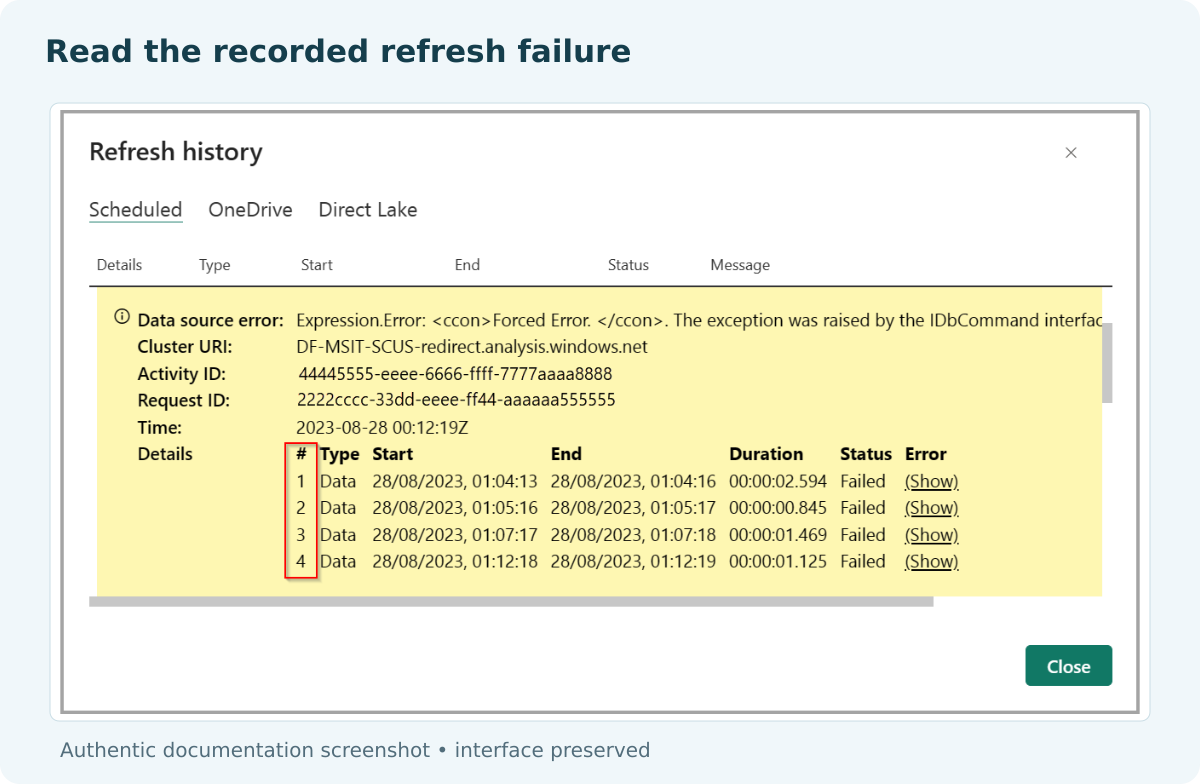

Power BI refresh history showing a source error and multiple failed refresh attempts.

Check the next scheduled run

A successful manual test is encouraging. Watching the next unattended run confirms that the recurring schedule is back in service too.

  
DEVELOPER AND API WORKFLOWS

Make failures clear in an automated workflow

An application or flow should make a refresh failure easier to understand, rather than hiding it behind another export attempt. Keep the original Power BI error and identify the person responsible for the affected connection or model.

For a PBRS workflow, use the supported refresh notification and error options, then monitor the reporting job through the execution API when your application starts it. Inspect the result as well as the execution status.

Distinguish a persistent configuration fault from a temporary service problem. An expired credential or offline gateway needs a repair. Retry only suitable temporary failures, with a limit and a deadline, rather than submitting the same known failure indefinitely.

Keep report generation and delivery separate from refresh in your application’s progress record. “Email sent” does not tell you whether the model updated. If the workflow requires current data, make the decision to continue depend on the relevant refresh result and expected data.

Record useful details such as model, time and error, while keeping credentials and tokens out of routine logs. Those details let the next person investigate without reproducing the entire incident.

Make the alert actionable

Name the affected model and the failed step so the recipient knows whether to investigate credentials, connectivity or processing.

  
CHOOSE YOUR NEXT STEP

Get the next report back on track

The routine is restored when the model refreshes successfully, the expected new figures appear and the scheduled process works again. For the operations team, that means tomorrow’s PDF is useful without another round of chasing the reporting owner.

Keep native refresh history as the starting point for diagnosis. Use PBRS’s supported refresh and failure-handling options when the wider task includes generating and delivering reports. The Power BI Report Automation guide explains that broader workflow.

Download the PBRS Internal Evaluation Guide

Contributors:

Christian Ofori-Boateng

Christian Ofori-Boateng

CEO, ChristianSteven Software