

POWER BI QUESTIONS

Why Does a Power BI PDF Export Omit Table Rows?

If your Power BI table contains 120 rows but the exported PDF shows only the 18 visible on screen, the problem is usually the output format. A standard PDF export captures the report page; it does not turn a scrolling table into a document that continues across more pages.

PBRS can help you deliver a more suitable output. Use a paginated report for a carefully laid-out detail document, or consider PBRS’s PDF - Data Only option when you want the data from an existing Power BI Service visual in a PDF. Once the output suits the reader, PBRS can deliver it on schedule.

  
THE DIRECT ANSWER

Find out where the missing rows went

Imagine an exception reviewer working through 120 outstanding cases. In Power BI, she can scroll through the table to reach the last case. In the emailed PDF, the table stops after the first 18 rows. The email arrived successfully, but it does not contain enough information to do her work.

First, find a case that is missing from the PDF and look for it in the report using the same filters and reporting period. If it appears when you scroll, the page export is the likely explanation. If it is missing from Power BI too, investigate the filters, query or data access before changing the PDF settings.

Also check what one row represents. A visual grouped by customer may show 20 customer totals drawn from hundreds of transactions. Comparing those two row counts would suggest missing data even when the export is behaving correctly.

For the exception reviewer, the question is whether the PDF includes the cases she needs to work through. That practical requirement should drive the output choice.
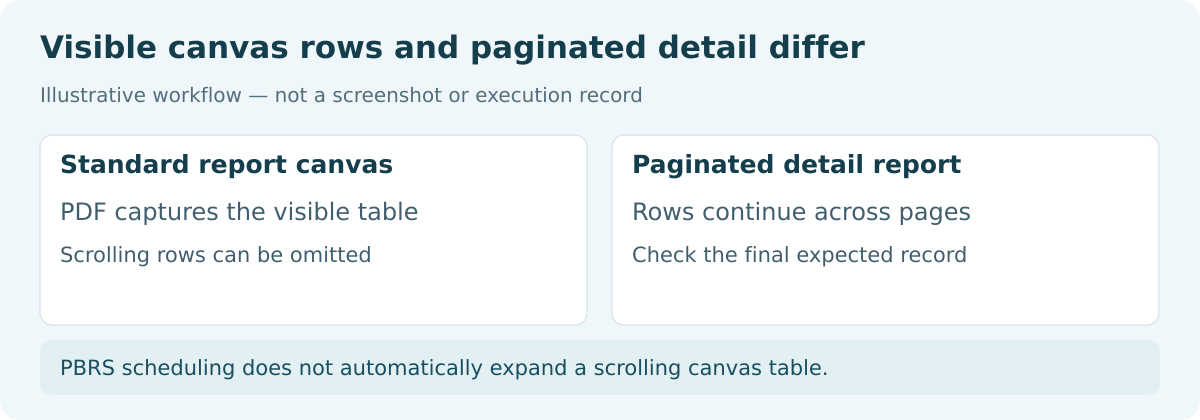

Visible table rows in a standard report PDF compared with detail rows continuing across paginated PDF pages.

Look for one missing case

A specific record gives you a better starting point than “the PDF looks short.” Find out whether that case is hidden below the scroll area or absent from the report’s results.

  
REQUIREMENTS AND LIMITATIONS

Choose a document that fits the reader’s task

A standard report PDF is good at preserving a visual summary. A paginated report is designed to carry detail across physical pages, with repeating headings and deliberate page breaks. PBRS’s PDF - Data Only offers another route when the useful content is the selected visual’s data rather than the surrounding dashboard layout.

What the reader needsOutput to consider
A visual overview of the exceptionsA standard report-page PDF with a readable summary.
A designed case list that continues across pagesA paginated report, scheduled through a supported PBRS or native route.
Data from the existing Power BI Service visual in a PDFPBRS PDF - Data Only, using permitted summarized or underlying data.
Records to sort, reconcile or analyzeA suitable Excel or CSV export.

Making the report canvas taller may fit more rows today, but it does not guarantee that next month’s larger result will fit. Scrolling before export is also unreliable: native PDF exports can return scrolling visuals to their default unscrolled state.

Data-oriented output still follows permissions and export limits. A paginated report prints the rows returned by its query; it cannot add records excluded by filters or security. Choose the appropriate output, then try it with a realistic volume.

For the detailed requirements and controls, see Microsoft’s PDF export guide.

Choose for the person doing the work

A PDF suits reading and printing. If the reviewer needs to sort and annotate records extensively, a spreadsheet may be the more useful delivery.

  
END-USER WORKFLOWS

Try a data-oriented PDF in PBRS

If the reviewer wants the exception records without redesigning the whole report, try the existing visual with PBRS’s PDF - Data Only output.

  1. Identify the visual. Give the exception visual a title in Power BI and confirm that the schedule’s account can export the required data.
  2. Keep the intended filters. Select the report and the period or team that the reviewer needs.
  3. Choose the data-oriented format. In the destination, select PDF - Data Only (*.pdf), then Add the visual by Visual Title.
  4. Select the level of detail. Choose the permitted Summarized or Underlying option that matches the case list, and review its column headings and formatting.
  5. Try the finished file. Run the job to a test destination and compare the PDF with the expected 120 cases, including a known case near the end.

If the document needs more deliberate page design, use a paginated report instead. Give it the query, parameters and repeated headings the reviewer needs, then try a result that spans several pages before scheduling delivery.

For ordinary clipping, such as a cut-off label or column, adjust the relevant dimensions or margins. Keep that layout repair separate from the choice of how to print a growing list of records.

Try a busy week

Use a sample with enough cases to cross several pages. A quiet week can hide the very limitation you are trying to solve.

  
DEVELOPER AND API WORKFLOWS

Keep the API workflow focused on the right output

For an application-driven workflow, prepare the appropriate PBRS output first and then trigger the saved schedule. The application can request the reviewer’s case list without treating every PDF as though it were a complete data extract.

Use the PBRS execution API to start and monitor the configured job. Keep its execution ID with the reporting period and the intended report or visual, so the support team can identify the file the reviewer received.

Rendering settings such as dimensions, loading waits and cropping help control how content is drawn. They do not establish that every record has been included. Use the source-specific configuration for the report and output you selected; settings for one renderer may not apply to another.

When updating a schedule, follow the complete source-specific update contract and preserve its other settings and destination collections. Read back the result and run a representative export after changing the report selection or output format.

A successful execution tells the application that processing completed. For this case-list workflow, the initial output check also needs to establish that the expected detail is present and readable. Repeat that check when the report structure or likely volume changes.

Make the run recognizable

Keep the team and reporting period with the execution record. That gives you useful context when a reviewer asks about a particular list.

  
CHOOSE YOUR NEXT STEP

Give the reviewer the complete detail they need

The exception reviewer should receive a document she can work through to the final case. Once you choose an output that handles that detail, PBRS can repeat the preparation and delivery without someone rebuilding the file each week.

Use a canvas PDF for a visual summary, a paginated report for designed printable detail, or assess PDF - Data Only for the existing visual’s data. For the next step, see scheduled Power BI PDF delivery and Power BI Report Automation.

Download the PBRS Internal Evaluation Guide

Contributors:

Christian Ofori-Boateng

Christian Ofori-Boateng

CEO, ChristianSteven Software