

How to Apply Report Filters to Automated Power BI PDF Exports
An automated Power BI PDF needs its own saved filters. It should not depend on the region you last selected in your browser. PBRS can keep the intended region, PDF output, recipient and schedule together, so each recurring report is prepared for the right reader.
For an East region manager receiving a monthly sales PDF, that means saving East in the reporting job and separately deciding how the reporting month will advance. Once those choices are configured, you no longer have to recreate the manager’s view before every export.
- THE PROBLEM AND ANSWER Keep the manager’s region and month together
- YOUR OPTIONS Use the filter settings for your export route
- PRACTICAL SETUP Set up the East manager’s PDF in PBRS
- DEVELOPER AND API WORKFLOWS Pass regional choices through the PBRS API
- YOUR NEXT STEP Deliver a regional report the manager can recognize
Keep the manager’s region and month together
Imagine you have just been investigating West’s sales in Power BI. The next scheduled report is for the East manager. An unattended export should use its configured regional view, regardless of what you happened to be looking at earlier.
Begin with the manager’s question: “Are these my region’s figures for the right month?” Put the region and reporting period in the report heading, then identify the model field that selects East. In this example, the table is Region and the text column is Name; your model may use different names.
The regional filter and the month filter solve different problems. East can remain fixed for this manager, while the reporting period needs to move forward. A schedule that repeats every month does not, by itself, change a fixed October filter to November. Use a supported dynamic date setup or update the period as part of the reporting process.
Filters choose what appears in the report. Keep the correct data access and row-level security in place too; a presentation filter is not an authorization boundary.
Make the period visible
A clear heading such as “East sales — October” helps the manager recognize the intended report before reading the figures.
Use the filter settings for your export route
For a one-off PDF, select the intended report view and export it using the supported options. For recurring delivery, PBRS can save the filter in the schedule, while a Microsoft flow or API supplies explicit filter settings in its export request.
| Requirement | Practical approach |
|---|---|
| One manager always needs East | Keep a fixed East filter in that manager’s PBRS schedule. |
| Many recipients need different regions | Use a documented data-driven setup that matches each recipient to the right region. |
| An application chooses the region | Authorize the request and pass the value using the chosen API’s filter contract. |
| The report is paginated | Use its named report parameters rather than standard-report filter syntax. |
Microsoft’s standard ExportTo configuration uses reportLevelFilters with URL-style expressions. It supports one report-level filter object, so compatible conditions belong within that expression. Table and field names are case-sensitive; text values need apostrophes, while numeric values do not.
PBRS uses its own filter fields and types. Do not copy a Microsoft expression directly into a PBRS field. Also remember that saved slicers or bookmarks can narrow the result further: an empty PDF may reflect intersecting selections rather than an ignored filter.
Microsoft’s interactive PDF Current Values option does not respect service URL filters. A filtered browser URL therefore does not prove that the exported PDF will contain the same selection.
For the detailed requirements and controls, see Microsoft’s Export To File API reference.
A file name is a label
Calling the attachment East.pdf makes it easier to find. The filter inside the reporting job is what selects East’s data.
Set up the East manager’s PDF in PBRS
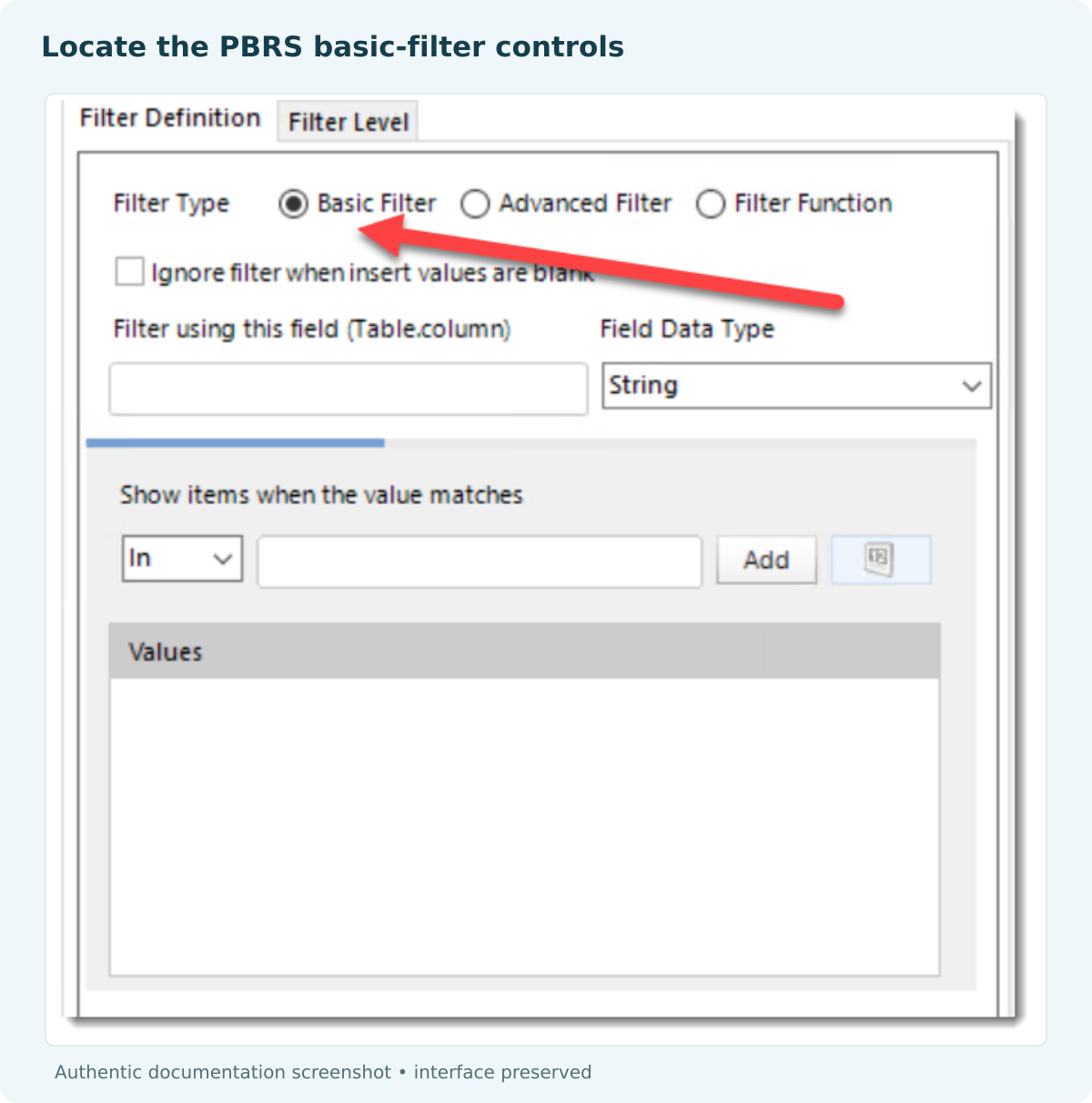
Open Report Filters in the PBRS schedule and add a filter. Under Filter using this field, choose the model’s actual table and column, then select its data type, filter type, operator and value.
- Select East. For this example, use the Region/Name text field and East as the fixed value.
- Set the reporting period. Configure the supported date selection or period update that will keep each monthly run current.
- Preview the report. Look for a familiar East figure and check the period shown in the heading.
- Choose PDF and the manager’s destination. Save those choices with the monthly timing.
- Try the delivered file. Send a test copy and compare its regional total with the intended report view. Include a check that a known West-only record is absent.
For a data-driven job, decide how missing or invalid regional values should be handled before sending any files. An unfiltered fallback could expose a broader report than intended. Test that case as well as the normal East delivery.
Once the job is working, the manager receives the regional PDF without someone revisiting the slicers each month. Review the setup when the report’s fields, date logic or recipient mapping changes.
Check next month’s behavior
Before enabling monthly delivery, establish how the reporting period changes. Keep the regional selection fixed only where that matches the recipient’s needs.
Pass regional choices through the PBRS API
A backend can ask PBRS to produce the manager’s PDF using a saved regional job. If it changes filter settings, use the actual PBRS definition rather than Microsoft’s URL-filter expression. For a table named Region and a text column named Name, this fragment illustrates the East filter:
{
"BasicFilters": [{
"TargetField": "Region.Name",
"FieldDataType": "String",
"FilterLevel": 0,
"Operator": "In",
"BasicValues": ["East"],
"IgnoreBlankDataDrivenInserts": false
}],
"AdvancedFilters": []
}TargetField uses Table.Column notation, FilterLevel 0 selects a report filter, and BasicValues is an array of strings. This is only the filter portion of a schedule, not a complete update request.
For an existing Power BI schedule, UpdateForPowerBI needs the complete intended definition and uniqueid. Preserve the other filters, destinations and destination IDs. The schedule API guide explains the update contract. Read the saved job with Get?Id={uniqueid}, then execute it and retain ExecutionId with the region and reporting month using the execution guide.
Keep simultaneous regional requests separate. An East request should not overwrite a shared job while a West request is using it. Authorize regional input on the backend and define the response to a blank or unapproved value.
For comparison, Microsoft’s powerBIReportConfiguration.reportLevelFilters uses an expression such as Region/Name eq 'East'. That route also requires export monitoring, file retrieval and delivery. Keep the two APIs’ representations separate.
Avoid cross-region interference
Design concurrent requests so one region cannot change the settings another run is about to use.
Deliver a regional report the manager can recognize
The East manager should recognize the report immediately: the right region, the right month and familiar figures. Saving that selection with PBRS’s output and delivery settings removes the repeated preparation while keeping the report tailored to its reader.
For more recipients, explore personalized Power BI distribution. The Power BI Report Automation guide shows how those individual deliveries fit into a wider reporting schedule.
Contributors:
Christian Ofori-Boateng
CEO, ChristianSteven Software

