

LEARN CRYSTAL REPORTS

How to Put Crystal Reports Results in an Email Body

You can put Crystal Reports results directly in an email body, with an optional attachment when recipients also need a separate file.

CRD supports report embedding. HTML embedding requires SMTP; MAPI embedding is text only, and some grouped email workflows have an additional restriction.

  
Your reporting task

Let the morning update be readable in the message

Imagine an operations manager checking a short daily exceptions report on her phone. The PDF contains only a few lines, but opening an attachment adds another step before she can see whether anything needs attention.

An inline report can make that brief update easier to read. Keep the PDF or workbook when the recipient needs a complete document, a durable working file or more detail than the email should carry.

Start with a short report whose values and headings are easy to recognize. A long, page-oriented layout is unlikely to become a good email simply because it is embedded.

Choose the reading task

A brief status update and a detailed month-end pack need different presentations. Use embedding where it helps the recipient act.

  
Your options

Choose embedded results, a summary or an attachment

A custom workflow can export report content to HTML and build an email around it. That leaves the implementation responsible for images, styling and the way different mail clients render the message.

CRD’s Email destination provides Embed Report and an optional Include Attachment setting. HTML embedding requires SMTP; MAPI messaging supports embedding in text format only. In a Data-Driven schedule, Group reports by email disables report embedding.

CRD also documents an optional AI-generated report summary, introduced in build 20260304. A generated summary is different from embedding the report itself and should be reviewed for the intended reporting use.

The Email destination guide explains embedding, attachments and summary settings.

Keep the main restriction visible

If you group data-driven reports into one email, use an appropriate attachment or package workflow rather than promising report embedding in that configuration.

  
Put it into practice

Prepare the operations email in CRD

Select the short exceptions report and configure the intended day and recipients. In the Email destination, write a subject that identifies the update and choose the configured SMTP connection for HTML embedding.

Enable Embed Report and review its output options. If the manager also needs a separate document, enable Include Attachment and choose the required attachment format. Use message Inserts where a changing period or value belongs in the accompanying text.

Send a controlled test and view it in the mail clients the manager actually uses. Check headings, values, images and the optional attachment. The report must remain understandable on the small screen where she first reads it.
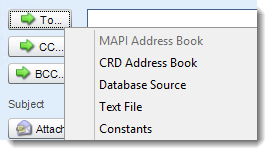

CRD Email destination settings for report messages and recipients.

Try the longest useful result

A quiet-day sample can look tidy while a busy-day report becomes unreadable. Test the amount of content the recipient really encounters.

  
Keep it dependable

Keep the message trustworthy after export

Forwarding or replying can change HTML presentation, so check that behavior if it is part of the normal handoff. Keep an attachment when colleagues need a more stable document alongside the quick view.

If you use the optional AI summary, configure the supported account, model and usage settings. Establish who checks whether the summary preserves important exceptions; the generated wording should not silently replace the report’s figures.

Technical reference: rendering and summary boundaries

Use SMTP for HTML report embedding and review the selected schedule type. Data-driven Group reports by email is incompatible with report embedding according to the documented setting.

HTML email support varies by client. Verify the delivered message, images and links rather than promising pixel-perfect reproduction. Treat an AI summary as generated explanatory content, with an appropriate review process and the underlying report available where required.

Check both reading routes

If the message contains an attachment, open it too. The inline view and separate file should describe the same reporting period.

  
Your next step

Let the manager see the update at a glance

The morning email should make the exceptions visible without making the manager hunt for the answer. Keep the presentation short and retain the file she needs for a closer look.

Explore CRD email automation using one report suited to reading inside the message.

Contributors:

Christian Ofori-Boateng

Christian Ofori-Boateng

CEO, ChristianSteven Software