

POWER BI QUESTIONS

How to Export Underlying Power BI Data to Excel

In Power BI Service, open the report visual’s More options menu, choose Export data and select Underlying data when available. You need the appropriate semantic-model Build permission and export policy. Then inspect the Excel file: underlying export does not guarantee every source row or column.

For a support team, a count of urgent tickets and the list of those tickets answer different questions. Start with a native export to establish the required detail. For recurring delivery, PBRS can repeat the visual selection, underlying-data setting and workbook delivery after that output has been checked.

  
THE DIRECT ANSWER

Decide Whether You Need Grouped Results or Individual Records

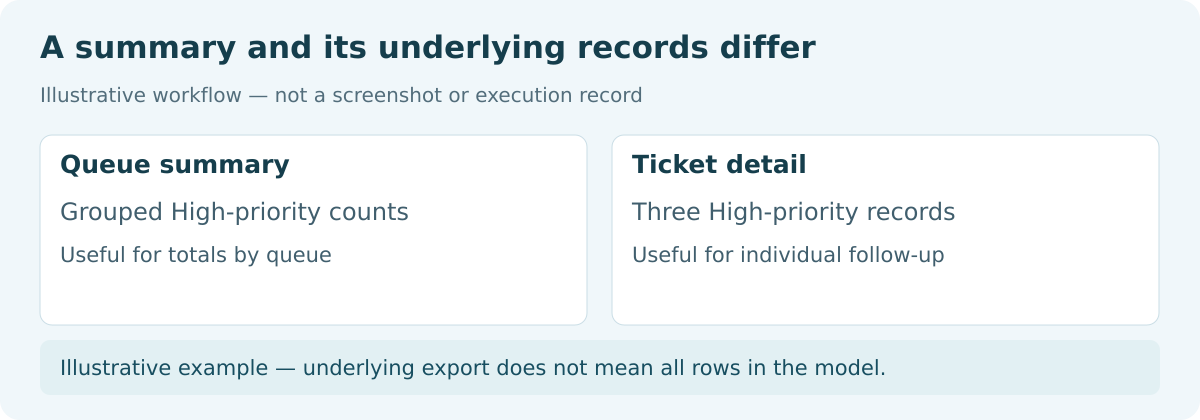
High-priority tickets shown as grouped queue counts and as individual ticket records.

Illustrative example — underlying export does not mean all rows in the model.

Suppose a report counts High-priority tickets by queue. Our synthetic source has five tickets, three of them High priority. A summary tells the team how many tickets each queue has; a detailed list identifies the tickets to investigate.

Question Intended output Check
How many High-priority tickets per queue? Operations: 1; Support: 2 Both counts use the same High-priority scope
Which tickets make up the counts? Three distinct qualifying ticket IDs Required identifiers and fields are present
Will every model column appear? No universal column contract Inspect the actual fields returned

Microsoft’s visual export documentation explains that output depends on the visual and model. Related model data may appear, but underlying export is not a dump of every source table. A measures-only table has calculation logic rather than stored detail rows; its export can contain evaluated measure values.

Write down the task beside the export mode: grouped count, exception list or individual-record reconciliation. A two-row summary can answer the first task correctly without supplying the detail for the others. Rearranging its worksheet cannot add missing records.

Choose the level of detail

Grouped counts: Use summarized results for counts by queue.

Individual records: Check the ticket identifiers behind those counts.

Fields: Inspect the actual returned columns.

Model: Do not assume every source table is exported.

  
REQUIREMENTS AND LIMITATIONS

Check Build Permission, Export Policy and the Authorized Scope

Build permission on the semantic model is required for underlying export. Being able to view the report does not establish that permission. The owner can inspect Manage permissions for the correct model. Request access appropriate to the approved task rather than a broader workspace role as a workaround.

Check report access, model Build access and report/tenant export policies separately. If Underlying data is missing or disabled, give the owner the report and model identifiers so they can inspect the right configuration.

Test with the intended export account. Workspace row-level security restricts Viewers, including those with Build permission, but does not apply to Admin, Member or Contributor roles. An author’s export may therefore differ from a Viewer’s.

Our example assumes an approved account can see both Operations and Support. Its High-priority baseline is three tickets. An account limited to Operations needs a different baseline. Compare against that identity’s authorized records; do not treat every smaller result as truncation or change roles to obtain unauthorized rows.

Check the actual export account

Build: Verify permission on the correct semantic model.

Policy: Check report and tenant export controls.

Identity: Test the account that will export the file.

Role: Distinguish a Viewer’s scope from an author’s scope.

  
END-USER WORKFLOWS

Export the Selected Visual and Retain Its Filter Context

  1. Open the intended report in Power BI Service with the export account. Confirm its semantic model with the owner.
  2. Apply the required filters. For the example, select High priority and record the authorized queue scope.
  3. Open More options on the relevant visual, choose Export data and select Underlying data if available and suitable.
  4. Choose the available Excel option and export. Retain the original file, export time and report context.
  5. Open the workbook and compare its actual field names and records with the checks in the next chapter. Use a working copy for sorting or changing displays.

If the option is unavailable, resolve that specific issue with the owner. Besides Build access and permitted export types, model conditions matter: missing unique keys and Show items with no data can prevent underlying export.

A normal menu export is sufficient when it provides the required authorized detail. This is a Service visual workflow; it does not create an export button or convert a Desktop CSV.

For repeated delivery, the PBRS Excel Data Only settings offer summarized or underlying data for the documented Service route. Select the actual page and titled visual, choose the required type, then test the generated workbook under the configured source account. Scheduling cannot correct an unsupported field or an inappropriate data scope.

Keep the native export context

Visual: Export the visual that answers the task.

Filters: Record priority and authorized queues.

Original: Retain the untouched file before working on a copy.

Unavailable option: Resolve the access, policy or model condition.

  
WORKBOOK VALIDATION

Validate the Export Against a Small Record-Level Example

In this illustrative source, TicketId is the unique text key, Queue supplies the grouping and Priority supplies the filter. The proposed visual groups by Queue and counts TicketId. Confirm which fields a real underlying export returns before relying on this three-column agreement.

Synthetic source
TicketId | Queue      | Priority
T-810    | Operations | High
T-811    | Operations | Normal
T-812    | Support    | High
T-813    | Support    | High
T-814    | Support    | Normal

Illustrative acceptance record
Filter: Priority = High
Authorized queues: Operations and Support
Expected unique TicketIds: T-810, T-812, T-813
Expected detail records: 3
Expected grouped counts: Operations: 1; Support: 2

Check the actual file:
required field names present
TicketId text values preserved
no missing or duplicate required keys
all accepted rows within the agreed scope
no omission warning
export identity and reporting context retained

The useful detailed output contains T-810, T-812 and T-813, with enough fields to establish their queue and priority. Neither Normal-priority ticket belongs in that extract. The records and counts were checked locally; no live Power BI export was performed.

Compare keys as well as counts. A file with T-810, T-812 and T-812 has three rows but duplicates one ticket and omits T-813. The local fixture check detected this deliberately constructed mismatch. It verifies the example’s logic, not an actual export.

If a column is absent, review field selection and model behavior with the owner. Do not substitute another field or assume the source was blank. Underlying-export guidance excludes datetime and variation columns, numeric columns when aggregated, and visual calculation results. Base the agreement on supported, inspected fields.

Check for omission warnings too. Standard visual XLSX output has method-specific limits and may fall below the headline ceiling. If the authorized detail does not fit, consider a designed detailed report or approved extract with its own controls. Keep the same scope and level of detail when comparing results.

Reconcile the ticket records

Keys: Compare the exact expected identifiers.

Counts: Reconcile detailed records with grouped results.

Duplicates: Equal row counts can still hide the wrong records.

Fields: Confirm the required columns are supported and present.

  
CHOOSE YOUR NEXT STEP

Keep the Native Export When Its Detail Is Sufficient
Accept the example’s output when the required fields, three unique High-priority IDs and queue counts agree with the authorized baseline. Keep the original file and acceptance record. Use a summary when recipients need counts; use detail for a defined record-inspection task.

If the required detail is unavailable, give the owner the report, visual, account, export mode and missing fields. Resolve that issue before scheduling. When the checked visual export becomes recurring work, PBRS report automation can repeat the supported process.

Return to Power BI Questions for the related export workflows.

Considering PBRS for recurring underlying-data exports? Share the guide with your colleagues to review deployment, licensing, security and your reporting requirements.

Download the PBRS Internal Evaluation Guide

Contributors:

Christian Ofori-Boateng

Christian Ofori-Boateng

CEO, ChristianSteven Software
