

LEARN CRYSTAL REPORTS

How to Run Crystal Reports for Yesterday, Last Week or Last Month Automatically

Run Crystal Reports for yesterday, last week or last month by calculating the reporting dates for each run instead of saving one fixed date forever.

CRD provides relative date constants for report parameters, including yesterday and the beginning and end of the previous month. Native report formulas or SQL can also suit the requirement.

  
Your reporting task

Stop reopening the report to move the dates forward

Imagine sending a monthly sales statement on the first working day. The schedule runs correctly, but someone still edits its start and end dates before every month’s report. Forgetting that change sends the previous period again.

The requirement is a moving selection: whenever the job runs, it should calculate the agreed completed month. That is separate from choosing the date on which the schedule executes.

For this example, a November run should select October’s sales. A late rerun for an older month needs a deliberate period choice, rather than automatically adopting whatever “last month” means on the day it is rerun.

Name the period clearly

“Last week” may mean the previous calendar week or the last seven days. Agree the definition before choosing a date calculation.

  
Your options

Choose where the date calculation belongs

A Crystal record-selection formula can calculate a relative period, and a SQL query or stored procedure can own the rule when that is how the report obtains its data. Those are useful native approaches when the reporting period should be part of the report’s logic.

CRD can supply relative values to report parameters through Inserts. Its documented constants include Yesterday, prior-week weekdays, MonthStartLastMonth and MonthEndLastMonth. This suits a report whose start and end parameters are already used in its selection.

A dynamic parameter list is a different feature: listing available dates does not necessarily select the required relative period automatically.

The CRD Inserts guide lists the date constants, while the Single Report guide explains using them in parameter fields.

Keep one owner for the rule

Avoid conflicting calculations in the source query and schedule. The selected dates should mean the same thing wherever they appear.

  
Put it into practice

Prepare the previous-month sales statement

Confirm that the report has working start and end date parameters. In the CRD schedule’s parameter fields, use Inserts to supply the first and last dates of the previous month, matching the types expected by the report.

Check the selection formula or query that uses those parameters. If the source contains timestamps, an end date interpreted as midnight may omit transactions later that day. Use the date-range logic appropriate to the report rather than assuming the displayed date proves all records are included.

Run to a controlled destination and compare the first and last transactions with the intended month. Repeat the calculation across a year boundary and February so the test does not depend on one convenient month length.
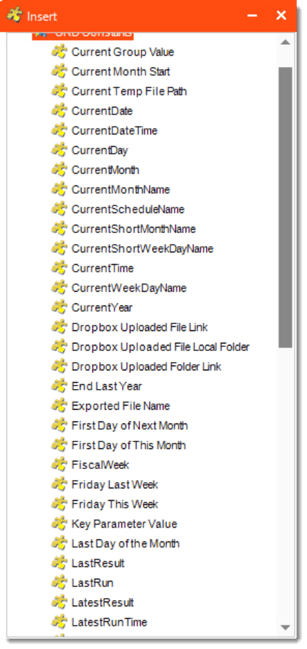

crd inserts crd constants

Put the period in the output

Use the reporting dates in the report heading or filename where appropriate. A recipient can then distinguish October’s figures from the November delivery date.

  
Keep it dependable

Make historical reruns deliberate

A relative date is evaluated for a run. If finance later asks for an older statement, decide whether to use retained output or generate that historical period explicitly.

An application starting the job should keep the requested business period with the execution record. It should not assume that a schedule’s name fixes its parameter dates.

Technical reference: date parameter behavior

CRD documents that detectable report parameters must be used, visible and prompted at runtime. Confirm the date or datetime type and the report’s selection semantics before inserting relative values.

For a historical request, use a supported configuration workflow and consider concurrent runs before changing a shared schedule. For fiscal periods, define and verify the required date rule separately from these calendar-month constants.

Separate a rerun from the next cycle

A request for September’s statement should not accidentally change the normal job’s next monthly period. Verify the saved configuration afterwards.

  
Your next step

Let the dates advance with the reporting routine

The monthly statement should arrive for the intended completed period without someone remembering to edit two fields. The recipient should be able to see that period in the finished report.

Explore CRD scheduling with your report’s real date parameters and boundary cases.

Contributors:

Christian Ofori-Boateng

Christian Ofori-Boateng

CEO, ChristianSteven Software