

Why Is Download Data or Crosstab Unavailable in Tableau?
When Download Data or Crosstab is unavailable in Tableau, select the intended worksheet and check the affected user’s permissions for that content. Viewing a dashboard does not grant every kind of data download. Summary rows, underlying detail and workbook downloads are separate capabilities.
For example, a manager can open the stock dashboard but cannot obtain the Excel summary needed for the morning review. Follow that particular sheet and account to a working authorized export. Then decide whether Advanced Tableau Report Scheduler (ATRS) should maintain its recurring production and delivery.
- THE DIRECT ANSWER Start with the manager’s selected sheet and account
- REQUIREMENTS AND LIMITATIONS Review the permission for the requested output
- END-USER WORKFLOWS Maintain the working stock-summary export in ATRS
- DEVELOPER AND API WORKFLOWS Request the authorized stock-summary file through the API
- CHOOSE YOUR NEXT STEP Decide whether the working export should become recurring
Start with the manager’s selected sheet and account
Open the same published workbook and site using the manager’s account. Note whether the Download menu is missing, Data or Crosstab is disabled, or a download starts and fails. This separates an unavailable action from a later processing problem.
For dashboard data, select the worksheet containing the stock summary. Tableau’s published-view download guidance explains the sheet selection and the Crosstab dialog’s CSV/Excel choices. Retain the intended filters and parameters; clear an accidental mark selection if the manager needs the complete filtered summary.

Check the selected sheet and the affected account before changing the export or delivery workflow.
If the dashboard is embedded in a portal, compare the same authorized view directly in Tableau. A missing toolbar may concern presentation rather than denied download permission. The account’s content access still determines which actions are allowed.
Ask the manager for the actual summary sheet, region, close date and expected columns. That makes the next request precise: review access to this output, rather than enable every download. If selecting the correct sheet resolves the problem, check the resulting workbook with the manager before investigating unrelated permissions.
Follow the manager’s export
Account: Reproduce the issue as the affected user.
Sheet: Select the stock-summary worksheet in the dashboard.
Symptom: Distinguish missing controls from a failed download.
Reference: Name the required region, period and columns.
Review the permission for the requested output
| What you see | What to check | Appropriate response |
|---|---|---|
| Can view but cannot get summary rows | Download Summary Data on the relevant content. | Ask the owner to review the affected user’s effective access. |
| Summary works but underlying detail does not | Download Full Data and the user’s site-role ceiling. | Confirm that detail is approved and supported for this user. |
| Crosstab unavailable in a dashboard | The selected sheet and applicable content permissions. | Select the intended sheet, then review access if still unavailable. |
| Administrator export works | The administrator and affected user have different authority. | Repeat the check under the real reporting identity. |
| Download starts but fails | File size, processing error and the selected output. | Retain the error and validate a smaller representative result. |
Tableau’s permission-capability reference distinguishes Download Summary Data, Download Full Data and image/PDF output. Ask the content owner to inspect the manager’s effective permissions on the relevant workbook and view. Several user and group rules can contribute to the result, so one Allowed checkbox may not tell the whole story.
A site role sets the maximum capability that can be granted; it does not grant access to every item. A Viewer can be allowed summary-data downloads but cannot be granted Download Full Data. The manager’s requested crosstab therefore needs to be distinguished from a request for every underlying transaction.
After an authorized correction, repeat the export under the manager’s account and inspect its columns, region and period. An administrator’s successful export cannot establish that the manager has the same access or sees the same rows.
Explain the permission needed
Summary: Check permission for the requested aggregated output.
Detail: Treat underlying transactions as a separate capability.
Role: Check the maximum capabilities allowed by the site role.
Rules: Inspect effective access across the relevant content and groups.
Maintain the working stock-summary export in ATRS
Once the authorized stock-summary export works, decide whether it should arrive without the manager repeating that download every morning. An ATRS reporting job can maintain the report selection, inputs, output and destination for that recurring requirement.
Configure the linked Tableau account in Integrations using the intended server, site and supported authentication method. Use the account authorized for this report, then verify its connection. A verified connection is the starting point; the actual stock-summary export establishes what that account can produce.
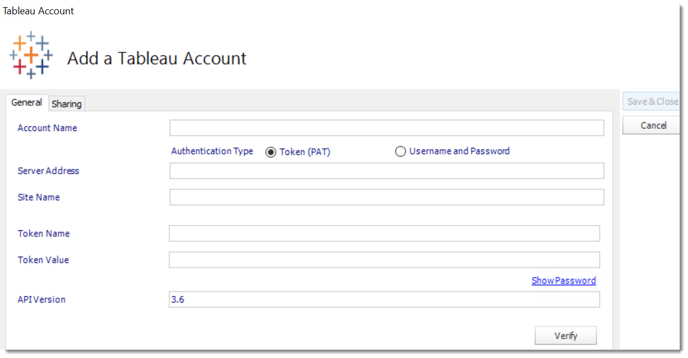
ATRS uses the linked Tableau account to access reports. Choose a supported API version for your deployment; the screenshot shows an older example.
Create a Single Report Schedule with the account and actual report Item Path. Set the supported region and business-date inputs, required output and a test destination. Compare the preview and executed file with the manager’s known stock summary before enabling normal delivery.
Inspect the account’s row-level restrictions and the intended period as part of that comparison. Permission for one summary does not establish permission for underlying transactions or another user’s personal view. If this reporting account lacks access, have the owner resolve the approved requirement rather than substituting an unrelated administrator account.
Finally, check the destination under the real service and delivery credentials. A folder or mailbox failure belongs to delivery, separately from Tableau export access. Once both stages work, the manager has a maintained recurring file instead of another manual download.

Maintain the authorized summary
Account: Link the Tableau identity approved for this report.
Content: Compare its actual output with the manager’s reference.
Period: Set and test the supported report inputs.
Destination: Verify the delivery credentials after export works.
Request the authorized stock-summary file through the API
An application can request that configured stock-summary file through the ATRS API. Use the report and Tableau account already checked for the approved output. This lets the application ask for recurring or on-demand production while source access remains with the reporting account.
Map the user’s stock-summary action to its stored ATRS job and authorize the request on your backend. The ATRS bearer token grants access to ATRS operations; it does not grant missing Tableau export permissions. Keep the token on the server and use the installation’s HTTPS address.
For an ordinary single-report schedule, replace 101 with its actual UniqueId in this illustrative request:
POST /api/Schedule/ExecuteScheduleAsync
Authorization: Bearer <ATRS-access-token>
Content-Type: application/json
{"ScheduleType":"report","UniqueId":101,"RunBy":"API"}Store the returned ExecutionId with the requested stock period. Use GetExecutionStatus to follow that run and parse its JSON-encoded ResultJson. A status of Completed can still contain Result=false.
After success, compare the produced file with the authorized stock summary and confirm its destination. Use the reporting account’s actual output for this check, rather than an administrator’s unrelated browser export. A correct filename or a completed queue entry cannot establish that the expected region and period reached the manager.
The execution request uses the job’s saved inputs, output and destinations. It does not restore a disabled native Download Data control or change Tableau permissions. After a lost response, inspect the earlier run and delivery before requesting another copy; no documented idempotency key prevents duplicates. The ATRS Developer Hub provides authentication and the full execution contract.
Request the stock-summary job
Authorization: Allow the application user to request the specific report.
Source access: Use the rights of the linked Tableau account.
Execution: Read the returned run’s result, not status alone.
Delivery: Confirm the expected file reached its configured destination.
Decide whether the working export should become recurring
Resolve the manager’s selected sheet and permitted output first. If the native crosstab supplies the needed workbook, that may complete the task. When the same authorized summary is needed repeatedly, evaluate the ATRS Excel reporting workflow for its production and delivery.
Bring the working summary and its real reporting account to that evaluation. The choice concerns who maintains the recurring handoff while Tableau continues to govern source access.
Planning recurring Tableau exports with ATRS? Download the ATRS Internal Evaluation Guide to review the source identity, deployment and required output with the content owner and reporting team.
Contributors:
Christian Ofori-Boateng
CEO, ChristianSteven Software

