

How to Export Power BI Data to CSV
For a one-off Power BI CSV, open the visual’s export menu and choose the permitted CSV option. For a recurring handoff, PBRS can save the visual selection, CSV settings and destination in a schedule, so you do not repeat the same export every morning.
Suppose a shipment system needs yesterday’s records each day. The useful result is a file it can import correctly, with customer names readable and shipment IDs such as 00123 intact. Start with those needs, then choose the export route that supplies the right records.
- THE PROBLEM AND ANSWER Choose the shipment records the next system needs
- YOUR OPTIONS Make the CSV easy for the receiving system to read
- PRACTICAL SETUP Save the daily CSV delivery in PBRS
- DEVELOPER AND API WORKFLOWS Request the shipment file from an application
- YOUR NEXT STEP Turn the daily file into a dependable handoff
Choose the shipment records the next system needs
Imagine the warehouse team waiting for a daily shipment file before starting its reconciliation. It needs one row per shipment, with ShipmentID, CustomerName and Amount. A Power BI visual grouped into customer totals would not provide the detail the importer expects.
Look at what the visual actually contains before exporting. For an interactive export, use More options (…) → Export data. Desktop exports summarized CSV; service visuals offer the data and file choices permitted for that report. Dashboard tiles also have an Export to .csv command.
Current filters affect the result, so select the intended shipment date and scope. If the visual supplies the required records, PBRS can repeat that titled visual’s export and delivery. If the requirement calls for a custom result from the model, a reviewed query-to-CSV flow may be a better fit.
CSV is a text format. It is useful for exchanging rows, but it does not carry workbook sheets, formatting or enforced field types. Choose Excel instead when the recipient really needs a workbook to work in.
Define one row
One shipment and one customer total are different records. Choose the visual or query that matches what the receiving system needs to import.
Make the CSV easy for the receiving system to read
Ask the person maintaining the importer which column names, order, separator and encoding it expects. These details decide whether the receiving system can use the file, even when the data looks correct in a preview.
For the shipment example, include a customer name containing a comma, a name with an accent and a leading-zero ShipmentID in the test data. Quoting and encoding should keep the names intact, while the import settings should preserve the identifier as text.
| Detail to agree | Why it matters |
|---|---|
| Headers and column order | The importer needs to put each value into the right field. |
| Separator and quoting | A comma within a customer name should not create an extra column. |
| Encoding | Accented names should remain readable. |
| Identifiers and dates | The importer should preserve codes and interpret periods correctly. |
| Blank amounts | Agree whether a blank means missing, zero or a rejected record. |
Native visual CSV export has a 30,000-row maximum and omits subtotal and total rows. Permissions and report/tenant policies still apply. CSV also does not retain Power BI sensitivity labels, so choose a suitable destination and handling process for protected information.
Count parsed CSV records, not physical lines: quoted fields can contain line breaks. Check the imported records as well as the raw file, because a spreadsheet preview can silently change values such as 00123.
For the detailed requirements and controls, see Microsoft’s visual export guide.
Test a realistic name and code
A comma in a customer name and a leading zero in a shipment ID expose problems that a file containing only simple numbers may hide.
Save the daily CSV delivery in PBRS
First export one representative file and try it in the receiving system. If it imports correctly, use those choices when creating the recurring PBRS job.
- Select the shipment report. Choose the account, report and filters that provide the intended daily records. Run after the shipment data is ready.
- Choose CSV output. Add the destination, select CSV (*.csv), and add the titled visual.
- Choose the detail. Select summarized or underlying data as permitted and appropriate for the shipment rows.
- Match the importer’s settings. In Format Options, set the separator and delimiter. Keep required headers; use Remove Title only if the visual title would otherwise become an unwanted import record.
- Try the complete handoff. Save a test file at the destination and inspect what the receiving system imports before enabling recurrence.
Use a recognizable file name and a date/time suffix if the team needs an archive. Decide how the next stage recognizes a batch it has already imported, so an uncertain delivery or rerun does not add the same shipments twice.
If export is unavailable, ask the report owner about the permitted route. Changing the filename or format does not grant access to data that the account cannot export.
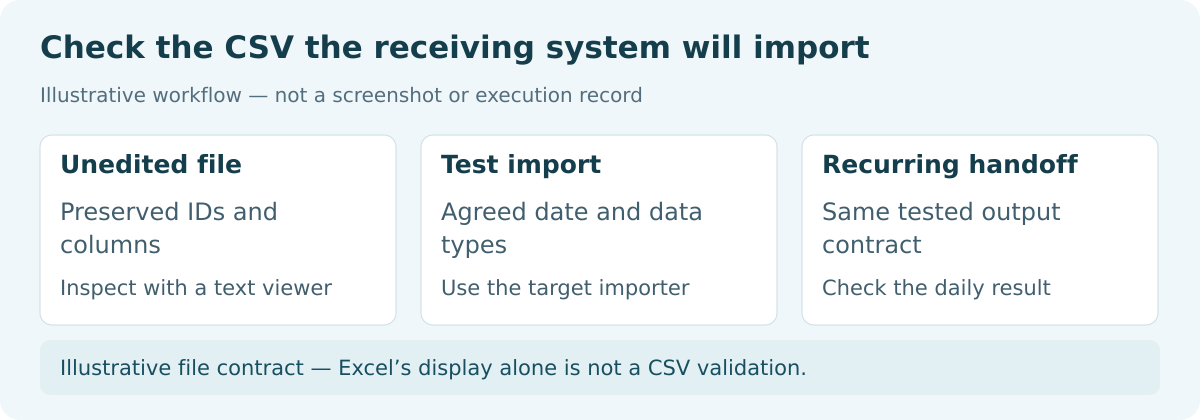
Check the stored records
Look at what the importer actually saved. A file that opens successfully may still have had identifiers or dates reinterpreted.
Request the shipment file from an application
If an application knows when the shipment batch is ready, it can request the PBRS CSV job instead of waiting for a fixed schedule. Configure the visual, filters, CSV options and destination in PBRS first, using the file that already passed the importer test.
POST {pbrsBaseUrl}/api/Schedule/ExecuteScheduleAsync
Authorization: bearer {pbrsAccessToken}
Content-Type: application/json
{
"ScheduleType": "report",
"uniqueid": 101,
"RunBy": "Shipment handoff"
}
GET {pbrsBaseUrl}/api/Schedule/GetExecutionStatus?ExecutionId={ExecutionId}
Authorization: bearer {pbrsAccessToken}Replace the example ID and connection values with the saved job. Keep ExecutionId with the shipment date and file identity, and inspect the parsed result using the PBRS execution guide. This triggers an existing configuration; it does not require inventing public API fields for every CSV format option.
A successful delivery is one part of the process. Record whether the importer accepted the records, and reconcile an uncertain batch before importing it again.
When the file needs a model query
If the visual cannot supply the required row set, Power Automate can run a reviewed DAX query, map the result with Select, serialize it with Create CSV table and pass that output to a file action. A script can use Execute Queries with a proper CSV serializer.
Specify the query’s date range and fields; it does not automatically inherit a viewer’s current slicers. Do not build CSV by joining raw values with commas or renaming JSON. Use the query route when the required data demands it, and PBRS when the supported visual-based reporting job fits the handoff.
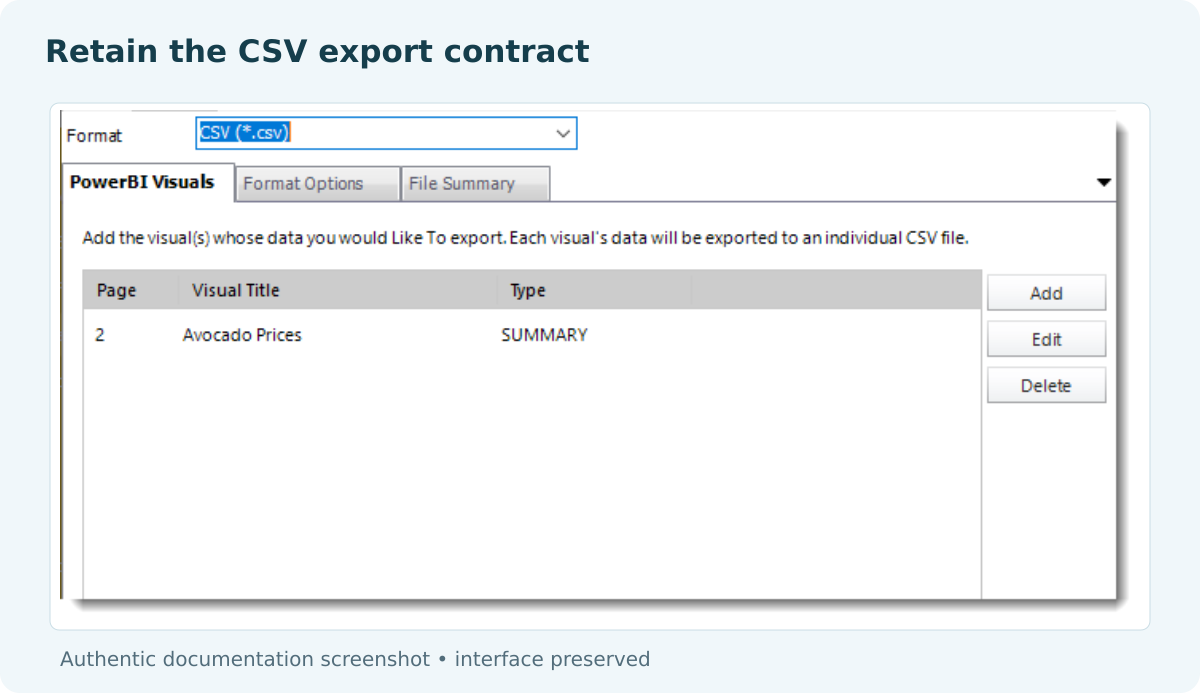
Make repeat imports deliberate
Keep the batch date and file identity with the run so the application can investigate a retry before adding the same shipments again.
Turn the daily file into a dependable handoff
The warehouse team needs the right shipment records in the next system, ready to reconcile. Once the file imports correctly, a PBRS schedule can take away the repeated visual selection, export and delivery work.
Keep a native export for an occasional file and a query-based workflow for custom model results. For recurring visual extracts, explore scheduled Excel and CSV delivery with PBRS and Power BI Report Automation.
Contributors:
Christian Ofori-Boateng
CEO, ChristianSteven Software

