

LEARN CRYSTAL REPORTS

How to Deliver Crystal Reports to SharePoint, Shared Folders and Printers

Crystal Reports delivery can extend beyond email to shared folders, printers and SharePoint through an appropriately configured scheduling workflow.

CRD keeps those destinations with the report, helping operations receive the right document where the work happens.

  
Your reporting task

Send the document to the place it will be used

Imagine a warehouse needing a picking slip at its local printer, while the operations manager needs a copy in a shared folder. Emailing both people a PDF leaves someone with another delivery task.

Start at the receiving end. Identify the printer and tray requirements, the folder another process watches, or the SharePoint library colleagues actually use. Then define the file format and name each destination expects.

The same report can have more than one delivery purpose. A printed working document and an archived PDF do not have to compete for one destination.

Use the recipient’s location

A mapped drive or a printer visible on your desktop may not be available to the machine and account running the unattended job.

  
Your options

Check the delivery facilities you already have

Crystal Server and BusinessObjects support configured destinations such as a file system and FTP, with availability depending on the deployment. A script can also export and copy or print files when its developer handles the relevant credentials and errors.

CRD provides destination configuration around the existing Crystal Report. That is useful when the warehouse print, the manager’s folder copy and other delivery instructions need to be maintained as part of one reporting routine.

SharePoint requires its own connection and authorization setup. Treat it as a configured destination, rather than assuming a web address can be substituted for a Windows folder path.

The CRD delivery overview describes the available routes.

Keep transport and content separate

Changing from email to a folder does not change which customer or branch data the report selects. Set the report values deliberately.

  
Put it into practice

Prepare the warehouse delivery

Choose the picking-slip report and enter the warehouse and reporting values. Add the intended printer destination and select the printer available to the executing host. Configure any required printer-specific choices using the supported driver.

Add the folder destination for the manager’s PDF, with a path and filename that the unattended account can use. If the workflow needs SharePoint, establish the documented SharePoint connection and library access before enabling the recurring job.

Run a controlled example all the way through. Collect the physical print, open the PDF at the actual folder or library and compare both with the picking work they represent. A print job reaching a queue is a different milestone from usable paper reaching the warehouse.
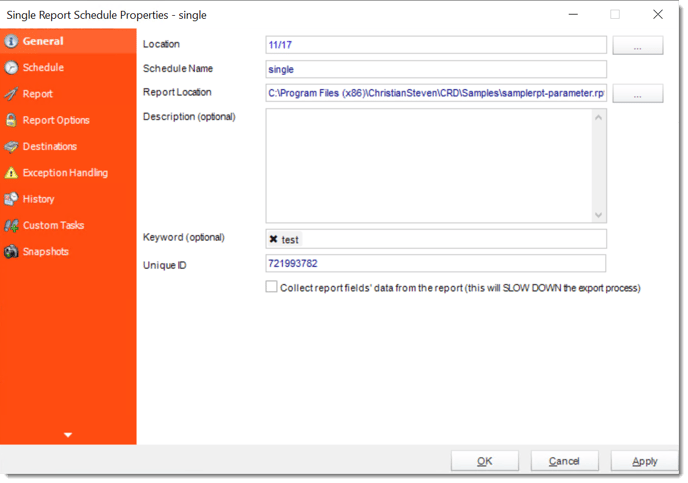

crd single general

Check the physical result

Verify the correct warehouse printer, readable pages and expected copies. A neighboring printer producing the file is not a successful routing test.

  
Keep it dependable

Handle different branch instructions without duplicating work

As more warehouses join, delivery instructions may become data-driven. CRD can use query results to determine parameters, output formats and destinations, so each branch can receive its agreed file or print route.

Keep the driver data maintained by someone who understands those reporting assignments. A printer name or folder value becomes an operational instruction when the schedule reads it.

Technical reference: destination access

Use an accessible network path and appropriate permissions for shared-folder delivery. Confirm printer availability, driver behavior and execution-account access under unattended conditions.

For SharePoint, verify the installed CRD version’s authentication method and the required consent and library permissions. Do not assume universal app-only access or that every desktop printer supports unattended use. Review partial destination success before repeating a job that has more than one destination.

Recover the missing destination

If the folder copy succeeded but the print failed, inspect what was completed before rerunning the whole job and creating another print or duplicate file.

  
Your next step

Let the document arrive where the work starts

The warehouse should begin picking with the right slip while the manager can find the electronic copy. Once both results are correct, the schedule can preserve that delivery arrangement.

Explore Crystal Reports delivery operations for the destinations your own process needs.

Contributors:

Christian Ofori-Boateng

Christian Ofori-Boateng

CEO, ChristianSteven Software