Tableau Report Packages

Automate Tableau Report Packages

ATRS Tableau Report Scheduler

Bring the reports your readers need into one recurring deliverable. ATRS creates Tableau report packages as separate attachments, a merged PDF or Excel file, or a ZIP archive.

Select the reports and set their required values.

Arrange PDF sections in the order readers need.

Plan the response to a blank or failed report.
Download the ATRS Internal Evaluation Guide START FREE TRIAL
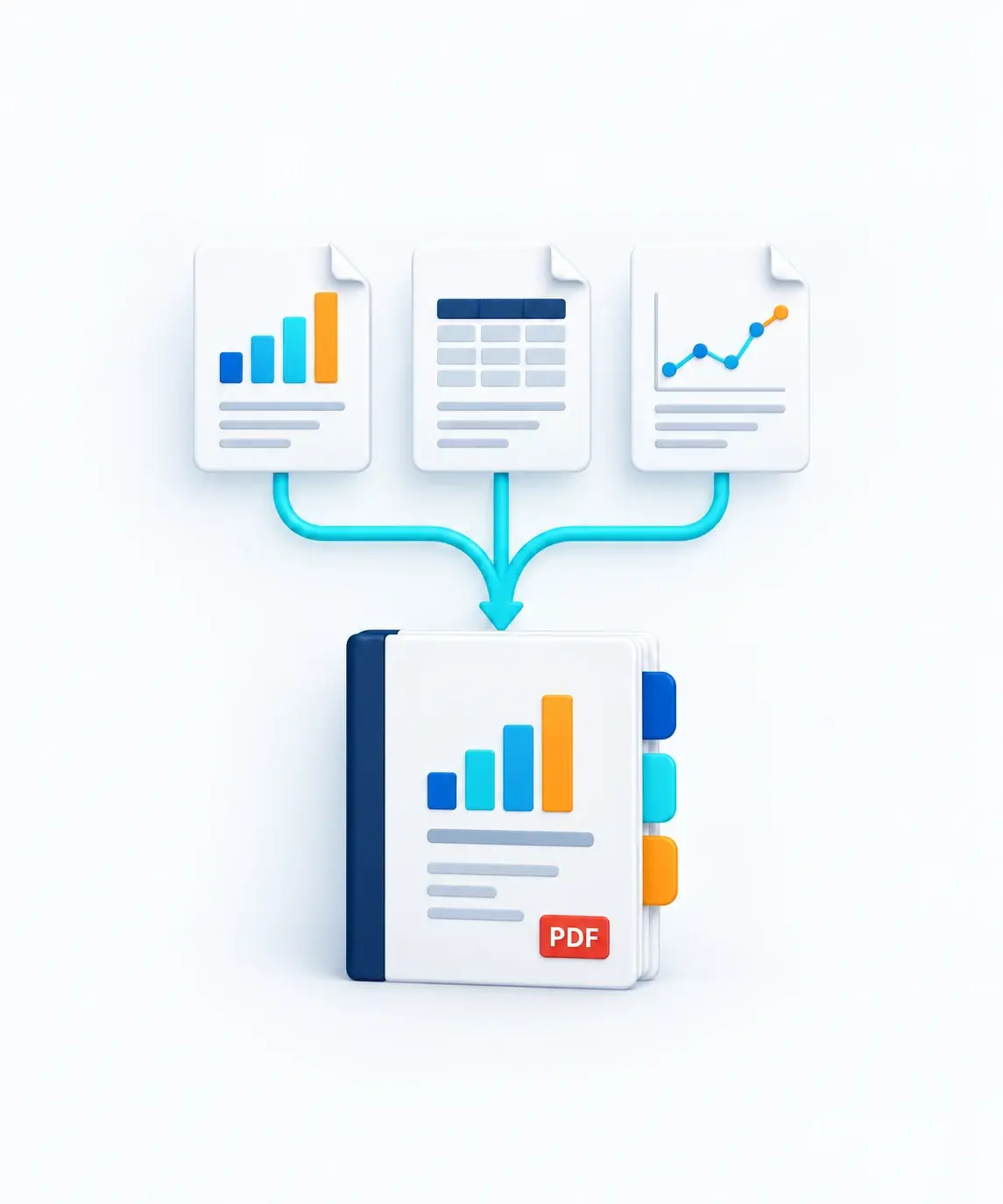
Three separate report pages combine into one PDF reporting pack with section tabs.

The Reporting Pack Challenge

Several Reports. One Useful Deliverable.

A management update may need revenue, operating costs and cash position together. Exporting each report is only part of the job: the finished pack needs the right contents, period and sequence.

Select the Right Reports

Keep the constituent reports together, with the source references and values each one needs.

Make the Order Clear

Let readers move from the overview to the supporting detail without sorting through unrelated files.

Recognize an Incomplete Pack

Decide which reports are required and what should happen if one is blank, missing or fails to export.

Choosing the Right Approach

Does One Tableau Workbook Already Meet the Need?

Tableau subscriptions can email a view or workbook as PNG, PDF or both. Use them when that produces the complete update. For a pack assembled from separately selected reports, ATRS Tableau report scheduler brings production and delivery settings into one package.

Native Tableau and owned scripts

Use the Simplest Suitable Approach

A view or workbook subscription is sufficient when its contents and PDF email match the requirement. Tableau can suppress an empty view and suspend subscriptions after repeated failures.

Recipients need the appropriate View and Download Image/PDF permissions for native subscriptions.

Tableau export commands can support a script you maintain; your implementation owns assembly, file naming, delivery and failure handling.

ATRS

Define the Pack as a Recurring Job

Select the constituent reports, their supported formats and reporting values.

Merge PDF reports in the displayed package order, or choose separate files, Excel merging or ZIP.

Maintain report-level and package-level exception handling alongside the recurring schedule.

Start with complete exports. A merge does not restore rows or pages omitted from an export.

Choose the Deliverable Your Readers Need

Start with how the pack will be used, then select its final form.

01

Separate Attachments

Keep files distinct when readers need to open or work with individual reports. A package can deliver them together in one email.

02

One Merged PDF

Give readers one continuous document, with PDF exports combined in the order shown in the package list.

03

One Excel Workbook

Merge Excel outputs into one workbook. Check the resulting sheets, names and layout; merging does not turn a dashboard into an identical editable spreadsheet.

04

One ZIP Archive

Keep different file types together in an archive. ZIP retains separate files rather than creating one continuous report; encryption is available when configured.

Package schedule guide · File assembly tasks. Data-driven packages deliver attachments; they cannot embed reports in the email body. For inline report images, see email design and sending.

A Three-Report Monthly Management Pack

Illustrative requirement: the finance team prepares a PDF for the management meeting each month. This example covers 1–30 September 2026 and produces management-pack-2026-09.pdf.

Illustrative PDF assembly order
OrderRequired report
1Revenue Summary
2Operating Costs
3Cash Position

Build the Monthly Pack

Add the three reports using their exporting Tableau accounts and Item Paths. Keep each report enabled, select PDF and set its supported date inputs to 1–30 September 2026.

Use the list’s move controls to arrange the reports as shown. Select Merge all PDF files and set the merged filename to management-pack-2026-09.pdf.

Give Finance a Review Copy

Configure a Disk destination for a restricted finance review folder, with write access for the identity running ATRS. Keep each test run in a separately named folder so an earlier file cannot be mistaken for the new result.

Choose a monthly run time with finance; the report inputs still determine the period. All three reports are required. The finance owner reviews the file before releasing it to management. This manual review is part of the example, not an ATRS approval feature.

Follow the package setup guide, then use the checks below with test destinations.

START FREE TRIALBOOK A DEMO
Three distinct report documents are brought together into one tabbed PDF reporting pack.

Check the Whole Pack Before Release

Use Test Package with test destinations for a complete run and each incomplete case. The finance owner records the result and decides whether the new file is ready for management.

Acceptance checks for the illustrative finance pack
Test caseWhat to inspectDecision in this example
All three reports succeedOpen the new PDF. Confirm all three sections, their order, September content, relevant source totals, readable page breaks, any configured bookmarks and the filename.Finance may release the reviewed copy.
Operating Costs is blankValidate the chosen blank check against a known empty case. Inspect the report/package exception actions and any resulting file.Hold release; investigate and review a corrected rerun.
Operating Costs fails to exportInspect the failure record, configured actions and any file produced. Two remaining sections do not make a complete pack.Hold release until a reviewed run contains all required sections.
Operating Costs is disabled or omittedCompare the enabled report list and final sections with the three-report list above. A skipped report is different from an empty export.Restore the required report and repeat the full test.

Choose the supported blank-detection method and configure the report and package exception actions. A nonzero file size does not prove that the expected business data is present. If using a SQL blank check, make its condition specific to the report and reporting period.

The release decisions above are finance’s policy. Before enabling unattended release, validate the configured exception and delivery sequence; ignoring one constituent does not establish that the remaining pack is complete.

Keep the Next Pack Ready to Run

Once the sample works, keep the report list, file policy and delivery route together. A package needs maintenance when its source reports or audience change.

Allow Time for the Whole Job

Concurrent export is an optional production setting. Measure the full job against the reporting window; concurrency does not guarantee faster production or enforce a dependency sequence.

Check File Size and Repeat Runs

Measure the finished attachment or archive against your mail and destination limits. Do not assume automatic splitting of an oversized pack. For recurring runs, choose a replacement or version policy that keeps the current approved pack identifiable.

Keep Sources and Recipients Current

When a report moves or is replaced, review its exporting account and Item Path in the package. The account needs the required Tableau access, export permissions and licensing. For changing recipient values or routes, use the customer and location distribution guide.

Set Up the Host and Recovery

Run ATRS on a supported Windows host connected to Tableau Server or Tableau Cloud. Configure the Windows Service for unattended runs, and give its identity the required source and destination access. Select snapshot retention and the person responsible for a failed or incomplete pack.

Use the calendar guide for timing, delivery and recovery guide for failed handoffs, and the exception-handling guide for blank checks and error actions. File-specific controls belong in the PDF and Excel guides.

Trusted Report Automation for More Than 20 Years

ChristianSteven Software has helped organizations automate business intelligence reporting and delivery for more than two decades.

20+
Years of reporting automation experience
Nearly 5,000
Organizations helped worldwide
47
Countries with customer organizations
SOC 2 Type II
Independent assurance over security and operational controls
Visit Our Trust Center →
Technical Support
Get help with ATRS setup and configuration
Current Capabilities
Follow ATRS release announcements and product guides
Enhancements
Discuss your reporting requirements with the ATRS team
TABLEAU REPORT PACKAGES FAQ

Questions About Tableau Report Packages

Answers about constituent reports, assembly order, incomplete packs and recurring production.

Can a package include reports from different Tableau workbooks?

Yes. Add the required constituent reports using their Tableau account and Item Path references. Confirm the exporting account can access each report and that all outputs are authorized for the intended audience.

What controls the order of a merged PDF?

The displayed package report list controls the PDF merge order. Use its up and down controls to arrange the reports before merging. Export timing does not change that reading order.

Does Excel merging guarantee a particular worksheet layout?

No. Inspect the final workbook for the expected sheets, names, data and formatting. The source export mode and merge settings affect the result. Use the Excel guide when you need a particular template or cell placement.

Can I send a different pack to each customer or location?

Yes. A data-driven package uses maintained instructions for recipient-specific reports and delivery. Grouping by email address or directory applies to email and disk destinations. Data-driven packages send attachments and cannot embed reports in the email body. See customer and location distribution for the instruction records.

What happens if a required report is blank?

ATRS supports file-size and SQL-based blank checks, with configurable report-level and package-level exception actions. Choose a check that represents the expected data and reporting period. Blank detection is separate from reviewing the pack’s completeness; the example uses a manual finance release decision.

Will ATRS split a large package into smaller emails automatically?

Do not rely on automatic size-based splitting. Measure the finished output against the sending and destination limits, then use separate planned packages or a suitable file destination if it is too large.

What changes when a source report moves?

Review the account and Item Path for the affected constituent, then test the revised export and complete pack. Update each affected reference rather than relying on automatic remapping.

Does one merged file count as one licensed report output?

Not necessarily. The output calculation uses driver records, enabled constituent reports and enabled destination/format combinations, then totals all runs on the busiest day. A pack of three reports can count as several outputs even when the reader receives one file. Use the report-output calculation guide for the actual configuration.

READY TO BUILD YOUR REPORTING PACK?

Try Your Own Three-Report Pack

ATRS Tableau Report Scheduler

Bring three representative reports to a free 30-day trial or demonstration. Assemble the pack your readers need and check what happens when one required report is unavailable.

START FREE TRIAL BOOK A DEMO
Free 30-day trial with no credit card required
Deploy ATRS within your own environment
Static-file recipients do not need interactive Tableau access