

POWER BI QUESTIONS

How to Export Large Power BI Datasets to Excel

To export a large Power BI dataset to Excel, choose a route that can return the required records and then reconcile the saved output. Standard visual XLSX exports allow up to 150,000 rows; live-connected visual exports allow up to 500,000. Model queries and paginated reports have different constraints.

Start with the records the recipient needs, their level of detail and whether the workbook should stay fixed. PBRS can repeat a supported visual export and delivery, but scheduling does not remove its data limits. The 240,000-record example below shows how to plan and prove a larger extract.

  
THE DIRECT ANSWER

Match the Row Limit to the Export Method

A workbook may open normally even when some data was omitted. Identify the export route before judging its size.

Route Boundary What to check
Standard visual XLSX Up to 150,000 rows; actual output may be lower Filters, level of detail and omission warnings
Live-connected visual XLSX Up to 500,000 rows Model access and later refresh behavior
Visual CSV Up to 30,000 rows Returned records, regardless of filename
Matrix with current layout 150,000 data intersections Value cells rather than row labels alone
Execute Queries 100,000 rows or 1,000,000 values; 15 MB per query Column count, response size and errors
Paginated XLSX Separate processing and rendering constraints Real report size, layout and destination

Microsoft’s visual export guide also describes a 16 MB uncompressed-data limit for DirectQuery exports. Selecting fewer columns can reduce volume, but retain every field the recipient needs.

For example, 60,000 matrix row categories with three value columns create 180,000 intersections. That exceeds the current-layout limit even though the row count is below 150,000. Changing the shape of a summary does not turn it into underlying source records. Decide what one row must represent first.

Identify the limit that applies

Route: Establish which method produced the file.

Visual: Check rows, intersections and DirectQuery volume.

Query: Count values across the required columns.

Warnings: Inspect omission messages and returned completeness.

  
REQUIREMENTS AND LIMITATIONS

Define the Complete Row Set Before Exporting

Suppose an approved September snapshot has 240,000 records, 20 required columns and one stable unique SaleKey per record. The recipient needs a fixed detailed workbook rather than a PivotTable that continues querying the model. These are synthetic planning values, not results from a live export.

Record the period, authorized scope, expected count, unique-key rule and independent totals. Check what the execution account can see under row-level security. For the query route, verify Read and Build permissions and the tenant’s Dataset Execute Queries REST API setting. Compare an account’s output with controls for that same authorized scope.

Excel’s worksheet specifications allow 1,048,576 rows and 16,384 columns per worksheet. Headers and other content use some of that space. Our example fits that grid, but still exceeds a standard visual export’s ceiling.

If Excel Online Business writes the workbook, its 25 MB file and 5 MB request limits apply too. Concurrent writers are unsupported. Estimate the final size and test representative data before choosing this approach.

Keep every part tied to the same stable snapshot or controlled period. If the source changes between partitions, successful queries can still produce a mixed result. Record the source version or agreed completed refresh state alongside the controls.

Define the complete result

Scope: Agree the period, authorized records and row detail.

Keys: Use a real unique identifier.

Destination: Check workbook size and writing constraints.

Consistency: Extract all parts from the same approved snapshot.

  
END-USER WORKFLOWS

Choose a Native Analysis or Paginated Route When It Fits

If the recipient wants interactive analysis, consider Analyze in Excel or a live-connected table. Analyze in Excel supports PivotTable analysis of the semantic model; it does not promise every source record in one worksheet. The tenant must allow the connection, and the user needs the documented model permission and Power BI license.

  1. Open the intended report or semantic model in Power BI Service and confirm its scope.
  2. For analysis, choose Export > Analyze in Excel or the documented semantic-model entry point. For a visual table, choose More options > Export data > Summarized data and XLSX with live connection.
  3. Open the workbook with the approved account. Check the table or PivotTable, filters and authorized scope.
  4. Agree whether later refresh is acceptable. Preserve an approved fixed output when the task requires an unchanging period copy.

For a designed detailed workbook, consider a paginated report. The Excel renderer produces XLSX and can use page breaks to create worksheets. Design its data region for detailed rows, and inspect merged cells and groups that may affect sorting or analysis.

Large paginated report guidance identifies Excel rendering as memory-intensive. Test representative parameters, capacity and destination. The visual’s 150,000-row ceiling does not describe this renderer, and a paginated route still has constraints.

Test the native alternative

Analysis: Choose a live connection when refreshable analysis is the job.

Snapshot: Confirm whether later refresh is acceptable.

Detail: Design the paginated data region for Excel use.

Volume: Test actual rendering and delivery requirements.

  
DEVELOPER AND API WORKFLOWS

Partition a Fixed Model Extract and Reconcile Every Part

Six 40000-row parts reconciled into the 240000-record September extract using unique SaleKey values.

A workbook opening successfully does not establish extract completeness.

With 20 columns, Execute Queries reaches its million-value limit at 50,000 rows, before considering response bytes. The 240,000-record example needs multiple calls. Six 40,000-record parts each contain 800,000 values; each response must also stay within 15 MB.

Synthetic plan: inclusive key ranges; 40,000 records per part
1: 1–40,000
2: 40,001–80,000
3: 80,001–120,000
4: 120,001–160,000
5: 160,001–200,000
6: 200,001–240,000

Illustrative predicate: replace schema and snapshot.
ReportMonth = "2026-09"
SaleKey > 40000 AND SaleKey <= 80000

Acceptance manifest for each part:
actual scope and source version
expected and returned record counts
unique-key and duplicate checks
required column names and types
independent numeric totals
response errors and completion status
validated output file reference

These ranges assume contiguous, unique synthetic keys. Real keys can have gaps: range width is not a record count. Establish the expected count for each actual predicate, keeping the snapshot, columns and authorized scope identical.

Inspect every response for errors and truncation, even with HTTP 200. If bytes limit a part, reduce its scope and rerun the defined partition. Write validated parts through one controlled workbook writer, or retain separately validated workbooks when appropriate.

Reconcile the union of keys as well as summed row counts. Check boundaries for overlaps and missing keys, then compare combined counts and totals with the approved snapshot.

PBRS can retain a supported visual-data Excel job with its destination, but it does not make this 240,000-record query complete by itself. For a very large detailed extract, an approved source-data or warehouse export may suit the job better than repeated visual exports or individual workbook row writes.

Use PBRS for a supported recurring workbook job

If a tested visual export or suitable paginated report already supplies the required extract, the application can ask PBRS to run that saved job. For a single-report schedule, call POST /api/Schedule/ExecuteScheduleAsync with its approved uniqueid and ScheduleType: "report". Keep the returned ExecutionId with the source snapshot and inspect its status and result as described in the PBRS execution guide.

Apply the same independent key, count and total checks to the delivered workbook. The visual-data Excel API guide explains that underlying export remains subject to the report’s available data and applicable export restrictions. PBRS helps retain generation and delivery for a supported job; it is not an unlimited dataset-extraction endpoint. Keep the partitioned query or approved source-data export when that is what completeness requires.

Prove completeness before adopting recurrence

Partitions: Count records for the actual predicates and source snapshot, not the width of the key ranges.

Combined output: Reject truncation and reconcile missing or duplicate keys across all parts.

PBRS fit: Use a tested visual or paginated job only when it supplies the required extract.

Acceptance: Keep the execution record and compare the delivered workbook with independent counts and totals.

  
CHOOSE YOUR NEXT STEP

Accept the Large Workbook Only After Completeness Checks Pass
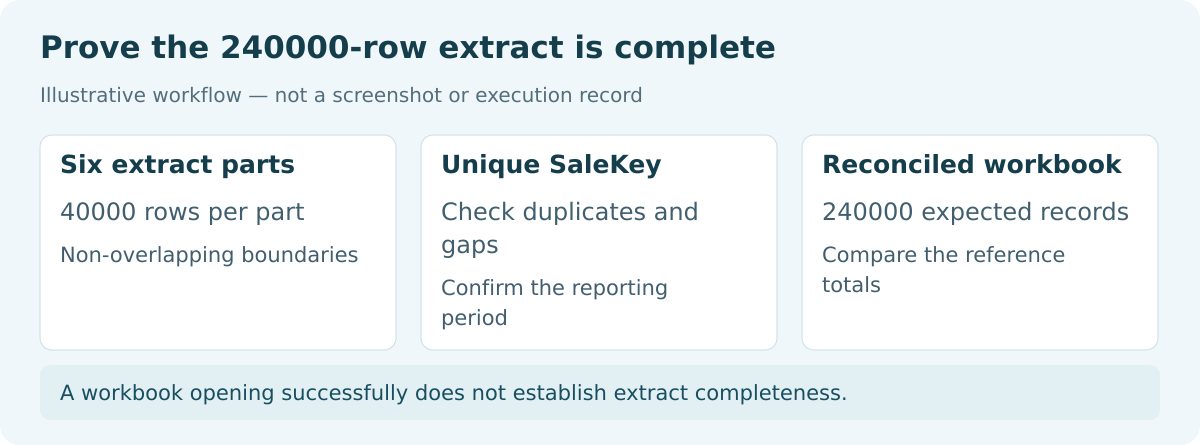
The synthetic plan should produce 240,000 distinct keys across six nonoverlapping parts. Actual source controls establish the totals and required types. Check that every part is present, the workbook opens and all required records are usable without truncation or a missing worksheet.

If a check fails, identify the limit that bound the export before changing methods. Document any filtering or partitioning and retain the missing-record checks. Choose connected analysis, paginated rendering or a source extract according to the recipient’s task.

Explore PBRS report automation for supported recurring export work, or return to Power BI Questions.

If you need recurring Excel delivery after choosing a report source that can handle your data volume, share the guide with your colleagues to review deployment, licensing, security and your reporting requirements.

Download the PBRS Internal Evaluation Guide

Contributors:

Christian Ofori-Boateng

Christian Ofori-Boateng

CEO, ChristianSteven Software
