

NHS PHARMACY · LEARN

A Personal Reporting Workspace for Pharmacy Staff

Give a colleague one place to find the dashboards and measures they check before a ward visit and another for the service meeting. Keep the ward view on their home screen if that’s where they usually start.

  
START WITH THE WORK

Give the Home Screen One Useful Job

Before visiting a ward, a pharmacy colleague goes looking for the dashboard they use on that ward. Later, they’ll need the activity summary for a service meeting. Both are in the reporting portal, but finding each one means sorting through the same long list.

The analyst sits with them and asks what they open first, what they look at next and which reports only come up in meetings. The colleague already has a folder that works well for occasional reports, so they keep it. They give the ward dashboard an easier starting point and set aside a separate place for the meeting.

If bookmarks or a short menu already do that for your team, there’s little to gain from changing them. A personal workspace starts to help when a colleague regularly needs several dashboards or measures together.

Use names people recognise

Ask two colleagues what they would expect to find under “Service review”. If their answers differ, make the collection’s name more specific.

  
BUILD A RECOGNISABLE WORKSPACE

Bring the Assigned Views Together

The colleague starts with a Canvas called “Ward reporting”. In IntelliFront BI, a Canvas is a page where they can put the dashboards and key performance indicators (KPIs) they’ve been given access to. They choose the ward dashboard and the few measures they check before a visit.

Putting those items on a Canvas changes where the colleague finds them. The reporting team still decides how the measures are calculated and keeps the underlying dashboards up to date. The colleague can arrange the items they use without asking the author to build another report.

IntelliFront BI runs on infrastructure the organisation controls. The local team manages who can open the reporting and how often it updates.

Keep the latest records in view

When the colleague opens the ward dashboard from their Canvas, they should still be able to see which records it includes. Keep that date and time on the dashboard where they can find it.

  
CHANGE THE TASK

Give the Service Meeting Its Own Canvas

Later, the same colleague is preparing for the service meeting. The useful starting point has changed: they want the agreed activity summary and the measures that frame the discussion. A second Canvas, named “Service review”, keeps that collection recognisable.

Where those dashboards and KPIs already exist and are assigned to the colleague, the task is to choose which ones to bring together. It does not require the reporting team to create a new copy of every dashboard for the meeting.
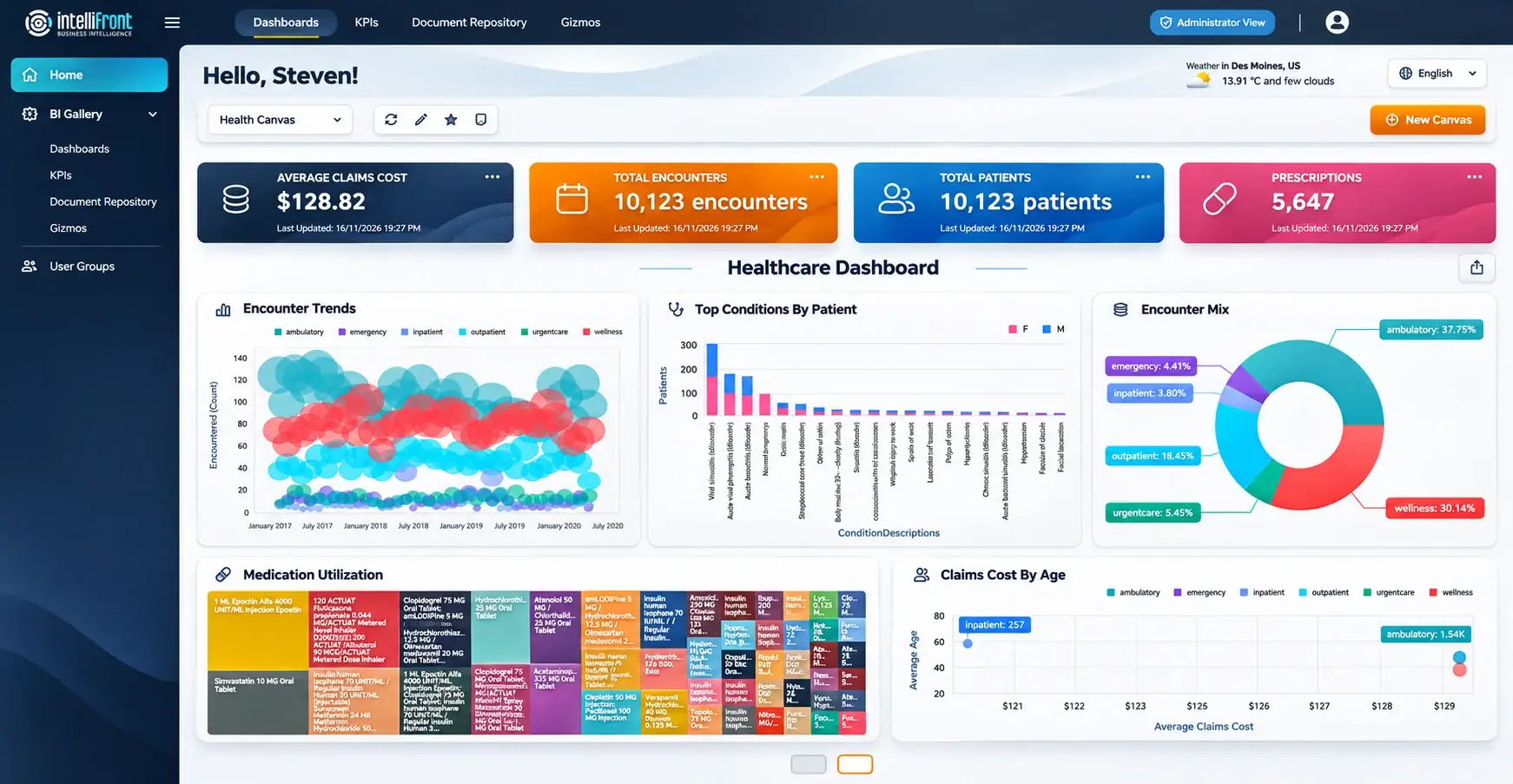
IntelliFront BI healthcare Canvas illustration combining KPI cards with a healthcare dashboard
Healthcare Canvas illustration combining KPI cards and dashboard views. Open the full Canvas.

The illustration shows the arrangement: measures and dashboard content together in a Canvas. The colleague’s ward and meeting Canvases would contain the assigned items selected for those tasks.

They choose “Ward reporting” as the favourite because it matches their usual first task. “Service review” remains available for the meeting. Another colleague might make a different choice; the useful home screen reflects the person who will use it.

Two Canvases are enough for this example. More collections become worthwhile when there is another distinct task to support.

Keep occasional work reachable

An item used only at month-end can still be valuable. Give it a recognisable place that the colleague can find when that task comes around.

  
KEEP ACCESS CLEAR

Confirm the Reporting Behind the Workspace

As the colleague prepares the two Canvases, a question comes up: what happens when they cover a different ward? That needs a conversation about the reporting they are authorised to use, as well as the arrangement they prefer.

The administrator and reporting owner can confirm which dashboards and KPIs the colleague may open. They also need to establish which records each dashboard makes available. Permission to open an item and the data visible inside it are separate parts of the setup.

A ward filter can help the colleague focus a view. The reporting team should verify the intended access boundaries independently of that selection, using representative reader accounts in the installed version and configuration.

Once the appropriate content is available, the colleague can decide where it belongs in their personal workspace. If something needed for the task is missing, the useful next step is a clear request to the person responsible for access or reporting.

That keeps the practical roles clear: readers organise their workspaces, reporting authors maintain the views and definitions, and the organisation decides access.

Route the request

“I cannot find the view” and “I need access to another ward” may need different help. Give readers a clear contact for reporting and access questions.

  
LET THE READER TRY THE DAY

Finish With a Home Screen They Can Explain

The analyst asks the colleague to try the two tasks. Before the ward visit, the colleague opens the Canvas called “Ward reporting” and finds the assigned dashboard. Before the service meeting, they open “Service review” and find the activity summary. At their next sign-in, they check that the ward Canvas opens as their home view.

Try it with a colleague who uses your reports. Let them find the views on their own. If they pause at a name or expect to find a measure somewhere else, you have something specific to change. Agree who can help when they cover a new ward or need access to another view.

For a wider view of how teams can bring assigned dashboards and reports together, see IntelliFront BI for NHS hospital pharmacy dashboards.

Contributors:

Christian Ofori-Boateng

Christian Ofori-Boateng

CEO, ChristianSteven Software