

POWER BI QUESTIONS

How to Get Excel Files from Power BI Desktop Table Exports

In Power BI Desktop’s model Table view, copy the required cell, column or table, then paste into Excel with deliberate column types. For a report table visual, Export data produces summarized CSV. Import that CSV and choose Excel Workbook (.xlsx) in Save As to create a real workbook.

For a one-off stock check, either route may be enough. If the same extract becomes recurring work, a maintained report and a supported PBRS export schedule can replace repeated manual transfers. First verify the records, text identifiers and types in one saved workbook.

  
THE DIRECT ANSWER

Identify Which Desktop Table You Are Using

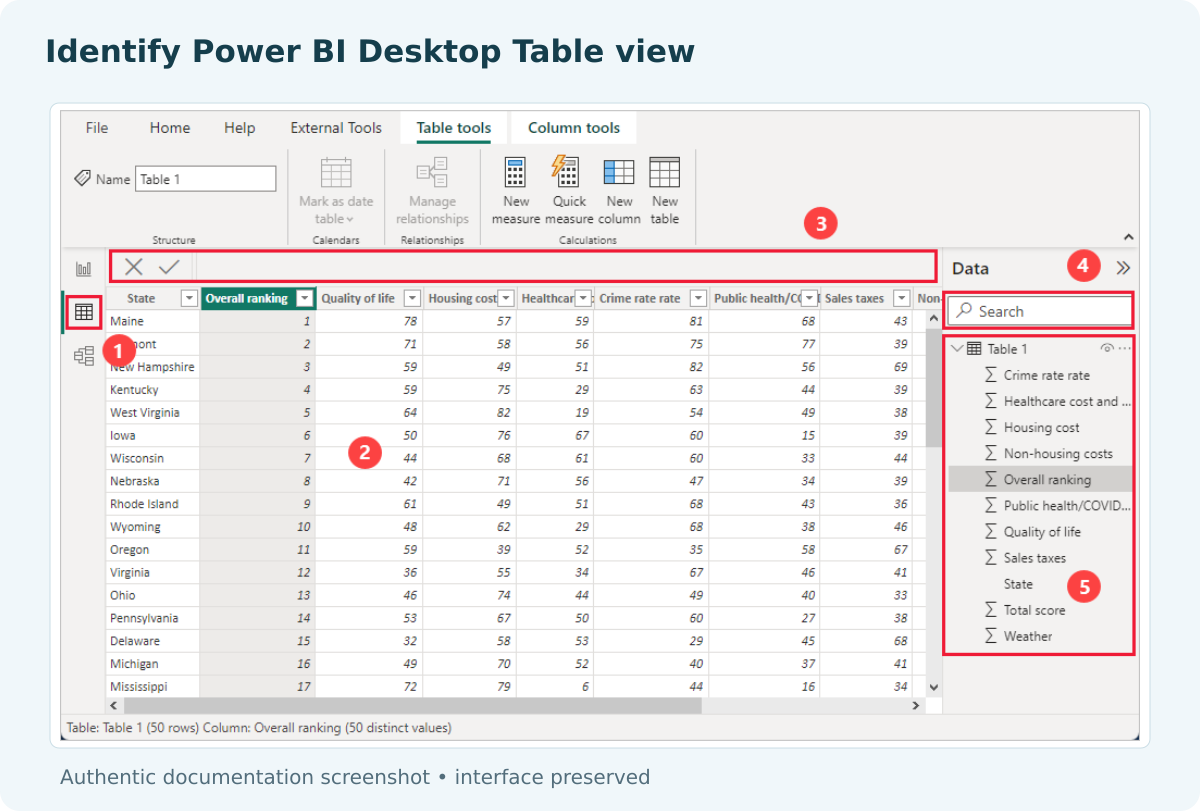
Power BI Desktop Table view showing model rows, the Data pane and table controls.

Microsoft documentation example. This is Table view, separate from a report visual or Power Query.

Desktop has more than one table-shaped view. Model Table view shows data after loading, separately from the report canvas and Power Query Editor. It supports copying a cell, column or whole table. Its icon is unavailable when every data source uses DirectQuery.

Starting point Transfer Next step for XLSX
Model Table view Copy the intended cell, column or table Paste with explicit types, validate and save a workbook
Report table visual More options > Export data produces summarized CSV Import, inspect types and save a workbook
Service report Separate visual-export workflow Use an authorized available XLSX option

Visual-export guidance identifies CSV as the ordinary Desktop format. Record the visual’s filters and aggregation and retain its actual CSV. A table-shaped display does not change the file type.

A visual might group Quantity by StockItem while the loaded model retains individual row IDs. Decide which level of detail you need. Matching totals alone do not establish that the right records were transferred.

Identify the Desktop route

Model grid: Copy the intended model data.

Report visual: Expect ordinary export to produce CSV.

Service: Review its separate authorized XLSX options.

Detail: Distinguish individual records from grouped results.

  
REQUIREMENTS AND LIMITATIONS

Define Column Types Before Excel Interprets the Data

The synthetic example has two stock records dated 1 October 2026. ModelRowId values are 000742 and 000743. StockItem values are Café, medium and Bolts – M6. Quantities 4 and 10 total 14. These test leading zeros, a quoted comma, Unicode, numeric values and dates.

Keep ModelRowId and StockItem as Text, Quantity as Number and SnapshotDate as Date. The comma in Café, medium belongs within one field. The UTF-8, comma-delimited source quotes that value. Confirm four columns and two records in the import preview; correct split text or changed characters before loading.

Microsoft’s leading-zero guidance explains why automatic numeric conversion can damage an identifier. Set Text before importing or pasting. Formatting a shortened number afterwards does not establish the original ID; compare with the source rather than guessing the zeros.

The sample uses the unambiguous date string 2026-10-01. Real files can use another date order or locale, so verify the actual day and cell type. A date-looking display can still hide the wrong date or plain text. Keep the original while checking.

Protect the stock fields

Identifiers: Preserve all six characters before conversion.

Descriptions: Keep the quoted comma and Unicode intact.

Quantity: Require numeric 4 and 10, totaling 14.

Date: Confirm 1 October 2026 as a date value.

  
END-USER WORKFLOWS

Use the Clipboard or CSV Route, Then Save the Workbook

For model Table view:

  1. Select Table view and the required table in Desktop. Inspect the fields and intended records.
  2. Right-click a cell and choose the appropriate Copy operation: cell, column or entire table. Record which you used.
  3. In Excel, format identifier columns as Text before pasting into a clean worksheet. Inspect headers, alignment and actual copied records.
  4. Check types and scope, then use Save As > Excel Workbook (.xlsx). Reopen the saved workbook and repeat the key checks.

Do not assume a filtered grid guarantees the clipboard contains the intended subset. Compare pasted IDs with the approved model-row baseline. Microsoft’s text-formatting guidance is useful background, but preventing conversion is preferable to reconstructing an identifier afterwards.

For a report table visual:

  1. Confirm the visual’s fields, filters and aggregation. Choose More options > Export data and retain the saved CSV.
  2. In Excel, choose Data > From Text/CSV. Inspect the delimiter and text interpretation.
  3. Open the available query-editing step and set ModelRowId to Text before loading. If an earlier type step made it numeric, replace that step and verify the original strings still read 000742 and 000743.
  4. Set numeric and date types, load and reconcile the records. Save As Excel Workbook (.xlsx), then reopen the file to check it.

Converting an already shortened number to text does not restore its zeros. Microsoft’s text-file guidance also explains that opening CSV does not change its format. Select the actual workbook file type; merely renaming the extension is insufficient.

Create and reopen the workbook

Clipboard: Inspect the actual pasted scope.

CSV: Review delimiter and types before loading.

Save As: Select XLSX as the real file format.

Reopen: Validate the saved output, not only the preview.

  
WORKBOOK VALIDATION

Inspect the Actual Sample Files and Their Stored Values

Download Illustrative Desktop Rows and Illustrative Desktop Workbook. Both public downloads were retrieved and matched against the locally checked files. The workbook was created locally from parsed synthetic CSV using explicit text, numeric and date values. No native Desktop export, clipboard operation or Excel import was executed for this example.

Actual illustrative workbook checks
Worksheet: DesktopRows
Headers: A5:D5
Business records: rows 6 and 7
A6: text 000742
A7: text 000743
B6: Café, medium
B7: Bolts – M6
C6: numeric 4
C7: numeric 10
Quantity total: 14
D6 and D7: 2026-10-01

Compare with the original CSV:
2 records
4 fields per record
exact identifiers and stock descriptions
Quantity total of 14
intended date values

An independent reader recovered these values from the saved XLSX, including text IDs and date cells. A CSV-aware parser retained Café, medium as one field and reconciled Quantity to 14. Splitting each line at every comma would give the wrong result; use a proper parser or Excel’s import preview.

Inspect the saved workbook after conversion. Check that identifiers remain text and quantities can be summed: SUM(C6:C7) should return 14. Compare dates and descriptions with the source too. The local sample does not claim a native Excel recalculation or import test.

For a larger report visual, CSV export is limited to 30,000 rows. That is a visual-export limit, not a documented clipboard limit for model Table view. Inspect omissions and reconcile the actual transfer. Creating XLSX cannot recover rows that never reached the CSV.

Inspect the saved values

Downloads: Use the actual checked source and workbook.

IDs: Compare every character of both identifiers.

Records: Interpret quoted fields with a CSV-aware method.

Completeness: Check omissions before and after conversion.

  
CHOOSE YOUR NEXT STEP

Keep the Source and Accepted Workbook Together
Accept the example when it has two records, exact text IDs, intact descriptions, numeric Quantity totaling 14 and the intended dates. Keep CSV and XLSX together. For a clipboard transfer, retain the model-row baseline and copied scope because that operation has no source CSV.

A controlled native Desktop workflow may meet a one-off need. Service’s authorized Excel export is a separate choice. For repeated delivery, maintain a report and test an automation route such as PBRS report automation.

If validation fails, locate the change in model selection, visual aggregation, CSV interpretation or workbook conversion. Correct that stage and repeat the checks. Return to Power BI Questions for related tasks.

If preparing Excel files from Power BI has become a recurring task, share the guide with your colleagues to review deployment, licensing, security and your reporting requirements.

Download the PBRS Internal Evaluation Guide

Contributors:

Christian Ofori-Boateng

Christian Ofori-Boateng

CEO, ChristianSteven Software
