

BUSINESS INTELLIGENCE QUESTIONS

How Can You Bring Reports and Dashboards into a Self-Hosted Portal?

The support lead starts the morning with a queue dashboard and opens a detailed report to check who owns the oldest cases. Both views should be easy to reach when a colleague covers the shift.

Try the route with someone who hasn’t used the portal. Ask them to find the oldest unassigned case and explain why it’s in their queue.

  
WHAT THE TEAM NEEDS

List the views each team uses

Bring reports and dashboards into a self-hosted portal by starting with the people who need them and the work they do. List each view, its owner, the source it uses and who should open it. The support lead needs the live queue and a case report. The service manager may only need the weekly trends.

Pick the approved version of each view. Give it a name readers recognize and record who will replace it if the report changes. Include a one-line description if the title doesn’t tell readers what the view covers.

Choose a named owner

Give each view someone to call when the figures or access change.

  
EXISTING REPORTS

Decide what to reuse and what to build

Keep an existing report if it answers the question and the portal supports its format. Try one Crystal Reports or SQL Server Reporting Services (SSRS) report with its real parameters and confirm that the returned rows match the original.

Build a native dashboard where readers need a different view, such as open cases grouped by age. Agree which source and team filter it should use. Check it alongside the existing case report so readers can reconcile the two when they review the queue.

Test one existing report

Check its parameters, access and results before adding it to the portal.

  
HOW READERS FIND IT

Give the team one place to start

Use the shared library for approved content. For related items, a Smart Collection in IntelliFront BI groups content by tag. A Support collection can bring the queue dashboard, case report and weekly trends together so the team can find them from the same place.
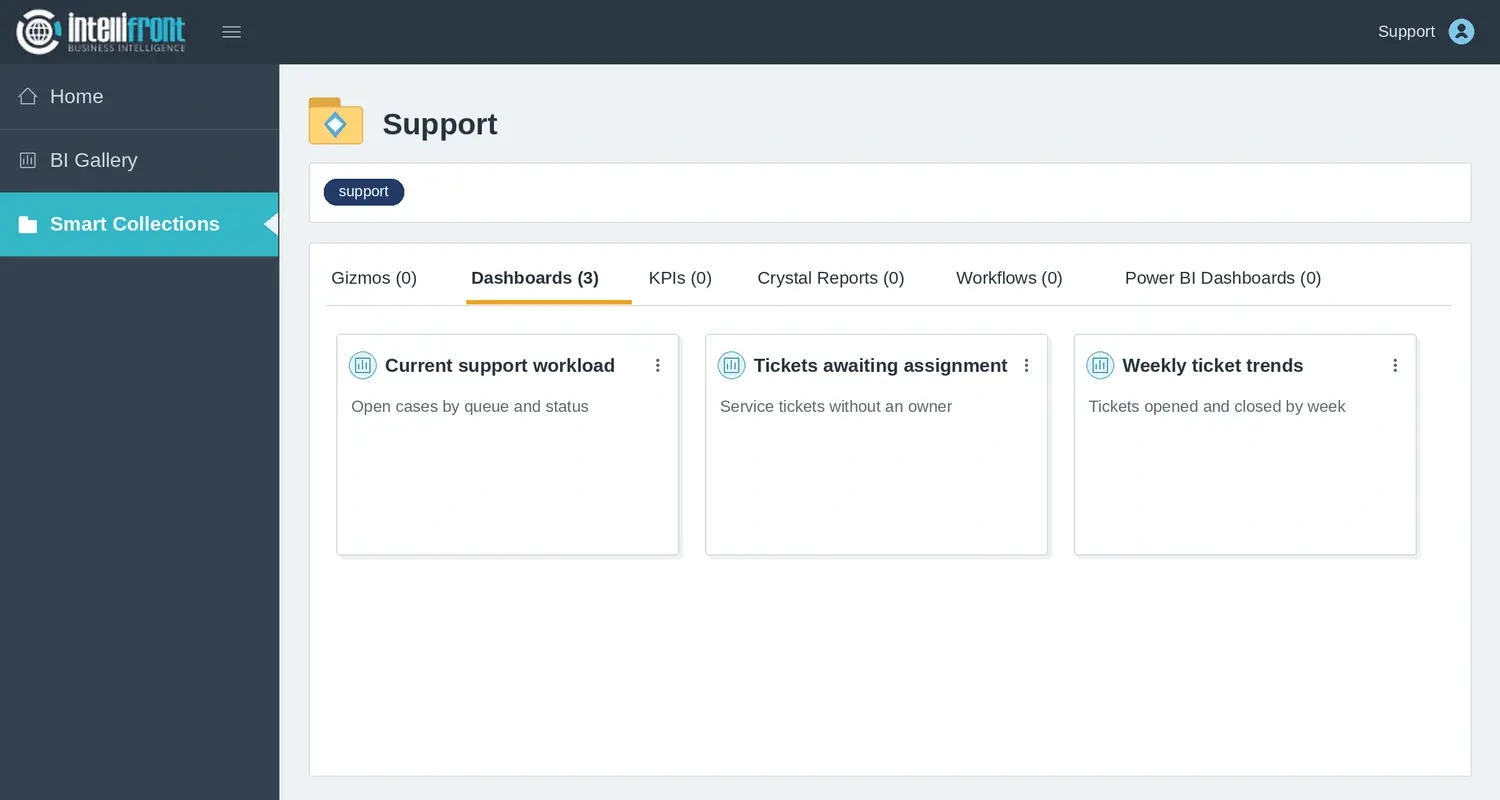
Support Smart Collection listing current workload, tickets awaiting assignment, and weekly ticket trends.
The Support Smart Collection groups three views the team uses regularly. Open the full-size example.

A personal Canvas can give the support lead a starting view with the dashboard and KPI she checks each morning. Keep the shared collection available for colleagues who need the same reports.

Keep names familiar

Use the terms readers use when they ask for the report.

  
ACCESS AND SHARING

Test access from a shared link

Open the portal using an ordinary reader account. Try a direct link to an item the account should be able to see, then try one it shouldn’t be able to open. Do this with a shared link as well as through the library.

A link to a portal item can require sign-in and apply the reader’s access when opened. An exported PDF or spreadsheet is a separate copy. If the team shares files, agree who can receive them and how they’ll tell whether the figures are still current.

Try the direct link

Ask whether the same permissions apply when someone forwards the link.

  
THE FIRST ROLLOUT

Pilot one reporting routine

Run the morning handover with the new portal for one team. Check that a colleague can open the queue dashboard, find the detailed report and get back to the shared collection. Give the source owner a way to flag a late refresh and someone to contact when a view fails.

IntelliFront BI is reporting software you host on your own infrastructure. To see how teams can put approved views within reach, explore the business intelligence reporting portal. Use the guide to plan your first reader test.

Download the IntelliFront BI Internal Evaluation Guide

Contributors:

Christian Ofori-Boateng

Christian Ofori-Boateng

CEO, ChristianSteven Software