

LEARN BUSINESS INTELLIGENCE

Giving Browser Users Access to Existing Crystal Reports and SSRS Reports

Pick a Crystal or SSRS report someone already relies on. If the existing viewer lets them sign in, choose the right dates and get the result they need, keep it. A shared portal helps when they have to look in several places.

  
START WITH THE READER

Choose a Report That Answers a Daily Question

A warehouse manager needs to find open orders at the North site that were due to ship in September. There’s already a Crystal report with the right layout and calculation. Give her a way to run it herself from her browser.

Try the reporting system’s existing browser viewer first. If it gives readers the access and output they need, keep that route.

Use a familiar task

Ask the warehouse manager to find her open orders without asking an analyst to run the report.

  
PREPARE THE EXISTING REPORT

Keep the filters and results the reader expects

Walk through the report with its author before opening access.

  • Explain what counts as an open order and which date the filter uses.
  • Name the choices clearly, such as Site and Requested dispatch dates. Test the defaults and the end date.
  • Check that the reporting server can reach the data source and that the report uses current or saved data as intended.

Check the source timestamp

If the report uses saved data, tell readers when it was captured.

  
GIVE READERS A REPORTING HOME

Follow the Journey from Sign-in to Result

If readers have to switch between reporting systems, IntelliFront BI gives them a place to find their approved reports. It’s ChristianSteven Software’s self-hosted reporting platform, so you run it on infrastructure you manage. An administrator can set up the existing Crystal report or connect the SSRS report from a configured report server, then assign appropriate access.

In this example, the manager opens Orders Awaiting Dispatch, chooses North and sets the requested dispatch dates to September 1–30, 2026. See the Crystal Reports viewer guide or the SSRS viewer guide for the steps in each viewer.
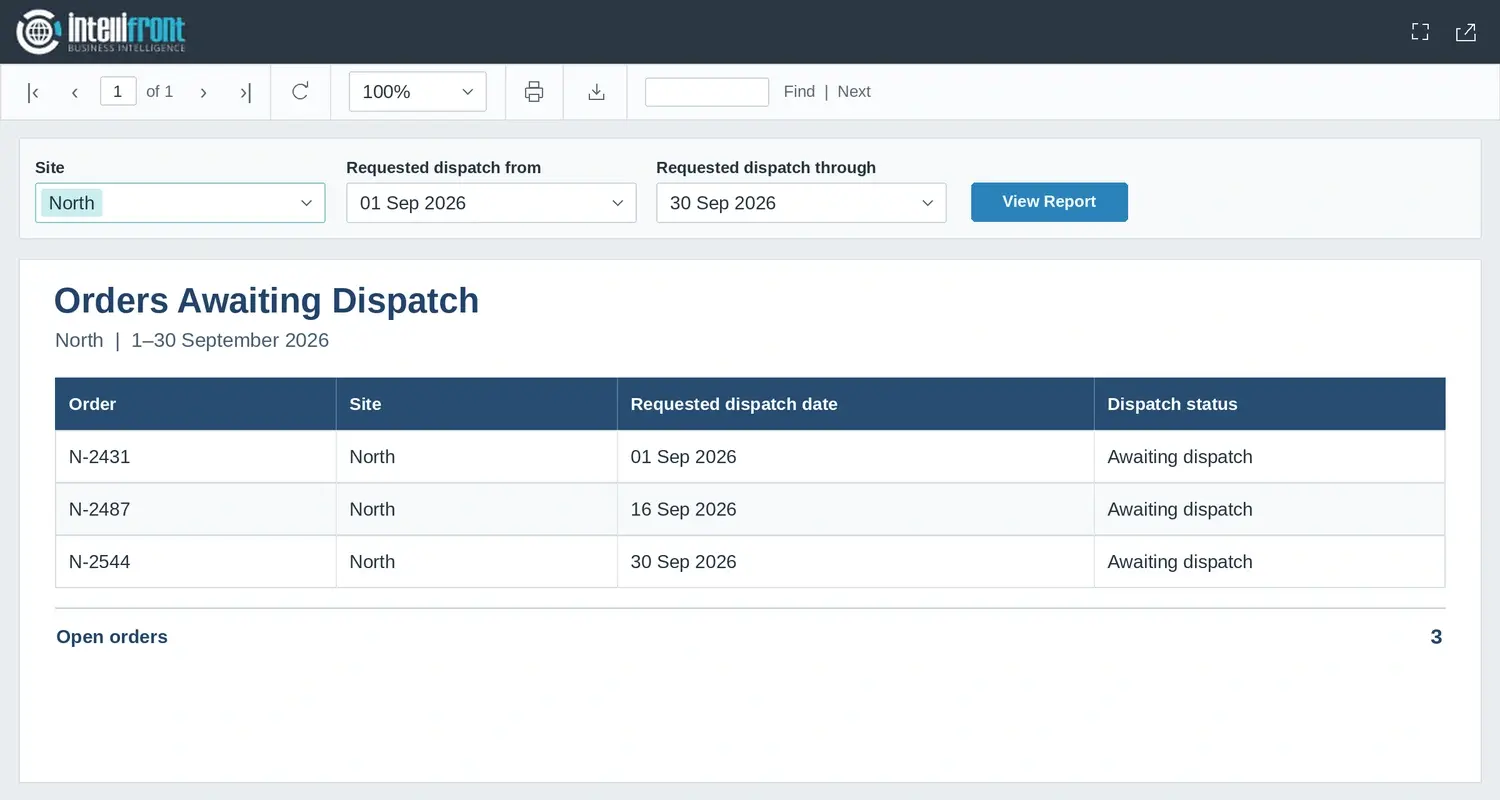

Orders Awaiting Dispatch report filtered to the North site for September 2026, showing three open orders.
The warehouse manager runs the report for North and sees three orders awaiting dispatch. Open the full image.

Use the reader’s account

Check that the manager gets the right report and only the records she is allowed to see.

  
CHECK THE VIEWING EXPERIENCE

Match the Result to the Browser and Device

The manager may only need the browser to check which orders to chase. If she also needs to keep a copy or send the figures somewhere, agree on the file format and test the report output separately.

Test the actual report in the browsers and devices people will use. If the table is hard to follow on a phone, try a compact layout or give that mobile task its own view.

Check one row

Can the reader match the order number, requested date and status without losing their place?

  
VERIFY BEFORE ROLLOUT

Check the Complete Reader Journey

Use a small test dataset with known results. Check both the order IDs and the totals for each filter combination.

Expected results for the fictional test sample
Site selectionRequested dispatch datesOpen orders
North1–30 September 20263
South1–30 September 20262
All sites, for an authorized reader1–30 September 20265
North1–31 October 20260

Give the manager the test results to compare with what she sees. Then make sure an empty result, a bad date and a connection failure are clear to her. Agree who will rerun the checks when the report or access changes. If some of those reports are in Crystal Reports, see how to give readers browser access to your existing Crystal Reports.

Contributors:

Christian Ofori-Boateng

Christian Ofori-Boateng

CEO, ChristianSteven Software