

LEARN BUSINESS INTELLIGENCE

Planning Customer and Partner Reporting Access

Write down what each customer or partner needs to open and which jobs should appear when they do. Sign in with an ordinary reader account and check both before inviting anyone in.

  
START WITH THE READER

Start with what each reader needs to do

Northgate and Harbor want to look up their own jobs. Ridgeway, the delivery partner, only needs the Northgate jobs it’s handling. All three readers need to choose a period and see the job history that applies to them.

If the existing customer system already supports the task and access rules, use it. Plan a shared portal when the reporting is spread across tools.

Start with a named reader

Give each person an account tied to the customer or partner relationship and record who owns that access.

  
MAP THE PERMITTED WORK

Separate Content Access from Customer Data

Opening the right dashboard is one check. Seeing the right records inside it is another. Agree both with the reporting and data owners.

Fictional service provider: intended external reader access
ReaderReporting taskPermitted business dataApproved actions
Northgate customer readerReview Northgate service historyNorthgate jobs onlyView; select a reporting period
Harbor customer readerReview Harbor service historyHarbor jobs onlyView; select a reporting period
Ridgeway partner readerReview jobs assigned to Ridgeway for NorthgateNorthgate jobs assigned to Ridgeway onlyView; select a reporting period

Apply the data-access rules using stable customer and partner IDs. A period selector helps readers choose dates. The same data boundary must apply to every period they can choose.

Check the supporting detail

The Northgate reader must see only Northgate jobs in the summary, underlying records and any available exports.

  
CHOOSE THE REPORTING HOME

Give Readers a Clear Place to Work

Give each audience a clearly named starting view and explain what the figures cover. If the three organizations need a shared portal, IntelliFront BI is ChristianSteven Software’s reporting platform, hosted on infrastructure you manage. Assign the appropriate reporting views to reader groups and check the records each group actually sees.

The IntelliFront BI group setup guide covers configuration. Test it alongside the data rules your team has chosen.

Test the complete visit

Ask the reader to sign in, find the right view, choose a period and open permitted detail.

  
KEEP ACCESS CURRENT

Plan Changes, Reviews and Account Closure

Agree who will handle new access, changes and departures. For a temporary partner, record an end date and an owner. A role change may require different reports, different records or both.

IntelliFront BI lets administrators disable accounts and set expiration dates. Use the user account guide for setup and verify what happens in your deployment.

Put a date on the review

Keep an owner and the next review date with the access plan.

  
TEST AS AN EXTERNAL READER

Check Allowed Work and Excluded Data

Load 15 jobs you can check by hand. A Northgate reader should see ten, and a Harbor reader should see five. A Ridgeway reader should see the four Northgate jobs assigned to Ridgeway.
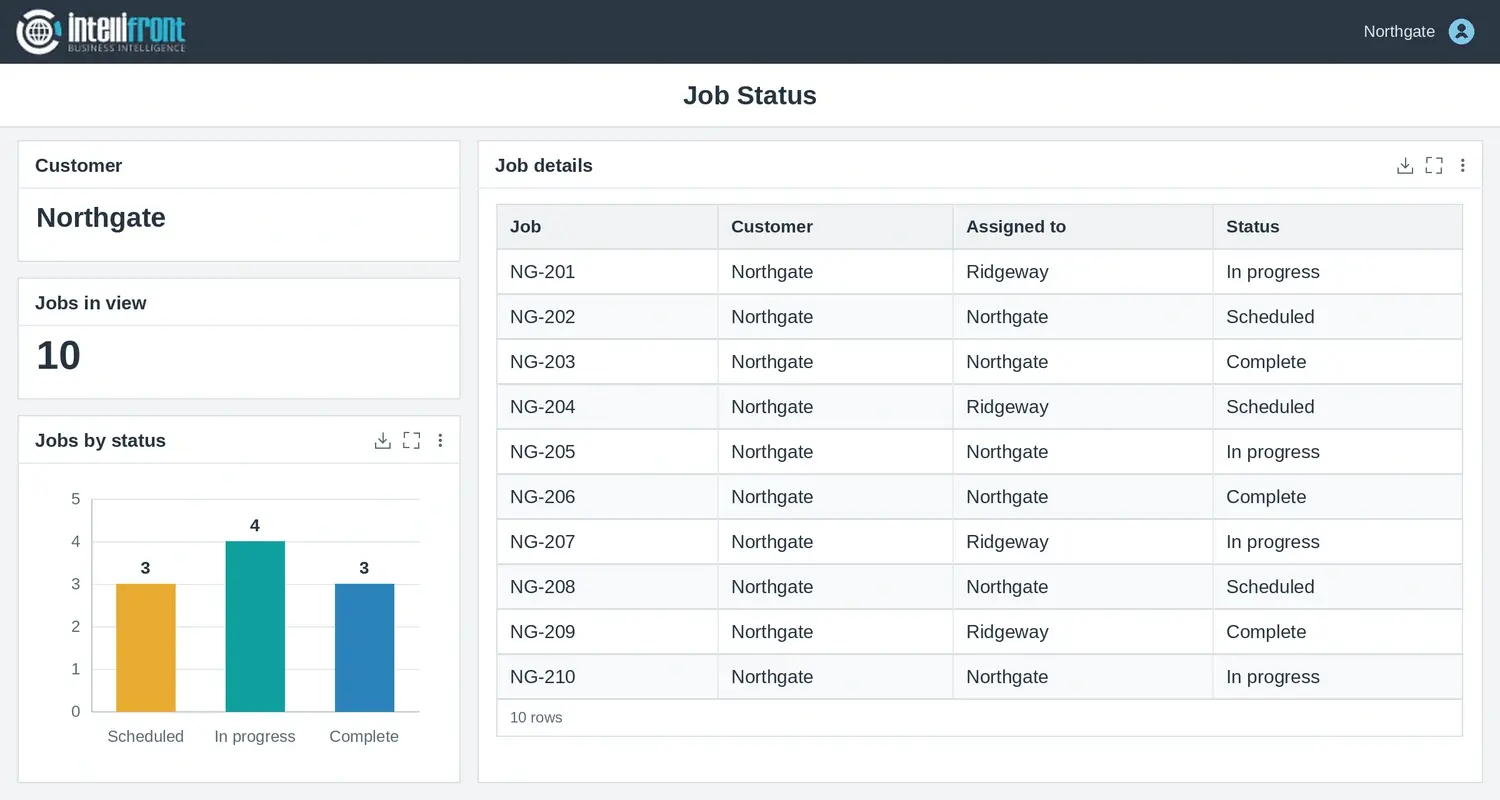
Side-by-side job status views showing ten Northgate jobs for the customer and four assigned Northgate jobs for Ridgeway.
Northgate sees all ten of its jobs. Ridgeway sees the four assigned to it. Open the Northgate view or open the Ridgeway view.
  • Check the totals, the rows and any available downloads.
  • Try a direct route to a report the account should be unable to use.
  • When you remove access, test a new sign-in and an already-open session.

Start with the smallest audience you can test end to end. Once you’ve checked what that reader can open, see and download, explore a reporting portal for customers and partners.

Contributors:

Christian Ofori-Boateng

Christian Ofori-Boateng

CEO, ChristianSteven Software