

LEARN BUSINESS INTELLIGENCE

Helping People Find the Right Reports and Dashboards

Name reports for the questions people bring to them. Group related reports in a place readers can find again, then ask someone to look up a real answer using their own account.

  
START WITH THE QUESTION

Organize Around the Work Readers Need to Do

On Monday morning, a support lead wants to see which tickets still need an owner. On Friday, she wants to see whether the team is opening more tickets than it closes. Make report discovery easier by giving her one place called Support where she can find both views.

Use the documents, workspace or reporting system you already have if readers can find the approved views there. Fix the names before adding another tool.

Ask for one real task

“Find the open tickets that still need an owner” gives you a concrete way to test the library.

  
MAKE THE CHOICES CLEAR

Give Each Report a Name and a Short Explanation

Give each report a name that describes what the reader will see. Under the title, add a short explanation of what the report includes, such as whether it covers closed tickets or only the current queue.

Fictional support library: names that help readers choose
Unclear nameReader-facing nameQuestion it answers
Support dashboardCurrent support workloadWhat is the current workload?
Tickets v3Tickets awaiting assignmentWhich open tickets have no assigned owner?
Weekly report finalWeekly ticket trendsHow has ticket activity changed by week?

Keep version numbers in the maintenance record. Readers need to know which view is current and approved.

Say what the name leaves open

If two reports sound similar, use the description to explain which one to choose.

  
GIVE READERS A STARTING POINT

Give the support lead a place to start

If those reports live in different systems, a shared portal can put them within reach. IntelliFront BI is ChristianSteven Software’s reporting platform, hosted on infrastructure you manage. Use Smart Collections to group approved items by tag, such as Support. Readers still need permission to open the items.
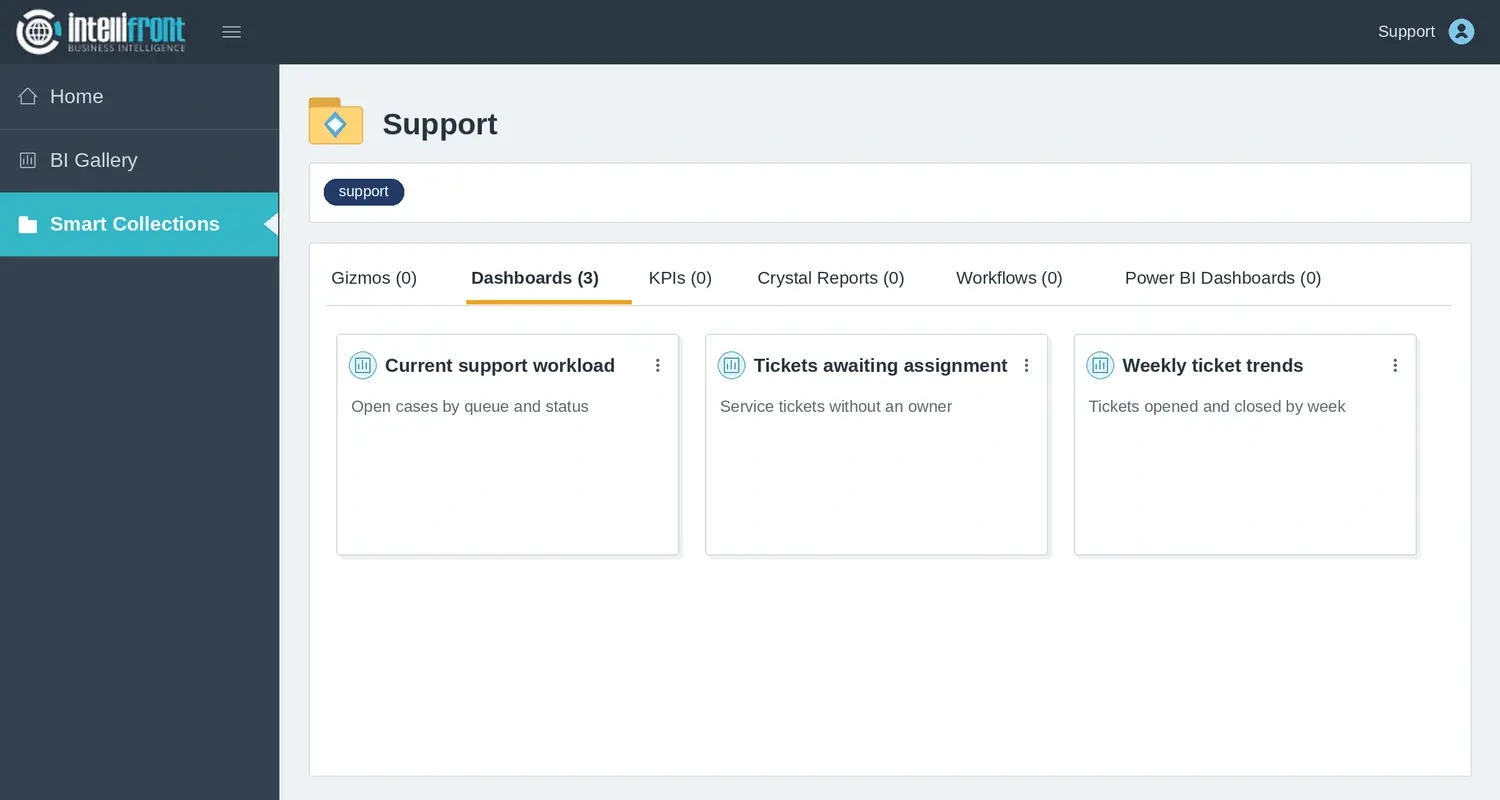
Support Smart Collection listing current workload, tickets awaiting assignment, and weekly ticket trends.
The Support collection gives readers one place to find three views they use regularly. Open the full image.

The Support collection helps the lead find what her team uses. For her own morning routine, she can create a Canvas, a personal workspace for dashboards and KPIs she already has permission to see. She might put the open queue next to her service-level KPI and make that Canvas her home view.

Give readers a way back

After opening one report, the lead should be able to return to the Support collection and choose another.

  
FOLLOW THE READER JOURNEY

Watch someone find a report and get back

Watch a reader complete the task using a representative account.

  • Find “Tickets awaiting assignment.”
  • Explain which tickets the view includes.
  • Return to Support and open the weekly trends.

Note where the reader slows down. Fix the label, description or route that caused the hesitation, then try the task again.

Test a second role if needed

Someone in a different role may see fewer items. Repeat the test with the view they actually get.

  
LOOK AFTER THE LIBRARY

Keep Ownership and Report Status Clear

Name an owner to keep the links and descriptions current. When a report changes scope or is replaced, update the name or direct readers to the approved version.

Start with the report people ask you for most often. Give it a name they’d use themselves and watch them find it. If the reports they need still sit in several systems, see how a reporting portal brings those views together.

Contributors:

Christian Ofori-Boateng

Christian Ofori-Boateng

CEO, ChristianSteven Software