NHS PHARMACY · LEARN

Designing a Dashboard for Prescriptions Awaiting Review

Show the pharmacist which prescription items still need review and why each one is on the list. If an item changed after its last review, use the pharmacy team’s rule to decide whether it belongs back on the list.

  
DEFINE THE REVIEW

Start With the Pharmacist’s Question

A pharmacist opens the ward list and recognises an item someone reviewed earlier that morning. The prescription item has changed since then. Should the pharmacist review it again?

In this example, the team has agreed that this kind of change needs another review. We’ll follow item R-27 from the change to the moment the pharmacist can see that the new review has been recorded.

Start with how the prescribing system records the item, its changes and its reviews. Ask the pharmacy team which step they mean by “review”. A system may use words such as “verified” or “screened” for separate steps. Use a label the pharmacist recognises.

If the prescribing system’s own worklist already gives the pharmacist the right list, use it as your reference. A separate dashboard may help when the team wants to see the work across several wards.

Begin with one familiar case

Ask the pharmacist to choose a changed item whose expected treatment is clear. That gives the analyst a concrete inclusion and removal test.

  
FOLLOW THE CHANGE

See Why the Item Returns to the List

The analyst finds an earlier review against R-27. Looking at the item’s history shows why that review is only part of the answer:

R-27: the worked example through the 09:00 extract
TimeEvent and meaning
08:35R-27’s earlier version is reviewed.
The review applies to that version.
08:50A relevant change creates a new version.
The changed item needs review under the example’s local rule.
09:00The source extract is produced.
It includes the change, with no applicable review of the new version.

Based on the 09:00 extract, R-27 belongs on the example’s outstanding list. Its reason can be expressed in the words the pharmacist needs: “Changed item awaiting review.” The earlier review remains in the history, and the changed version is the work to investigate now.

Follow the relationship behind the dates

The source owner helps the analyst establish how the review is attached to the relevant item or version. Some systems may expose version identifiers; others may use linked events or a different representation. The actual source structure determines the reporting logic.

That is why the team looks beyond a comparison of “last modified” and “last reviewed.” A timestamp gives an event a place in the sequence, while the event’s meaning explains whether it matters to this review.

With the relationship understood, the pharmacist can see why R-27 appears even though someone reviewed it earlier. The dashboard is now explaining the current work rather than asking the reader to reconstruct the history unaided.

Keep the source meaning

A change event describes what happened; its timestamp describes when. Use both when deciding whether the local review rule applies.

  
EXPLAIN THE WORK

Give Each Row a Useful Reason

The pharmacist’s next question is practical: “Where do I find the item, and what should I look at?” The analyst gives R-27 a clear reference, its ward and a plain reason for inclusion. A compact row could look like this:

A compact reporting row for the fictional R-27 example
Prescription itemR-27
WardWard A
Reason for inclusionChanged item awaiting review
Relevant change08:50
Source extract09:00

The item reference supports the handoff to the prescribing system, where the pharmacist inspects the current record and records the review. The reporting team can add the patient-identification detail needed for the organisation’s approved workflow and access arrangements. The item reference should help colleagues locate the source record without searching through the full event history.

Make the count agree with the list

R-27 has a review event, a change event and a place in the source extract. Those records explain one current item. The analyst makes sure that joining its history does not turn it into several outstanding rows.

A heading such as “Items awaiting review” tells the pharmacist what is being counted. A prescription with several items and a patient with several prescriptions introduce different totals, so the label should follow the level used by the list.

There is also a useful place for uncertainty. If the source cannot establish which review applies, label the row “Review status unavailable” and give those items a separate count. The team can investigate the missing relationship separately from items known to be awaiting review.

The result is a list the pharmacist can read before opening the source record: which item, which ward, why it is here and which source update supports the entry.


Keep the reason readable

A phrase such as “Changed item awaiting review” explains the entry. Colour can draw attention to the row while the words carry its meaning.

  
SHARE THE VIEW

Connect the Ward Summary With the Item

If the team wants a shared view across wards, it can build one in IntelliFront BI, which runs on infrastructure the organisation controls. Have the ward selector change both the count and the list. When the pharmacist chooses Ward A, R-27 should appear in that ward’s list while it needs review.

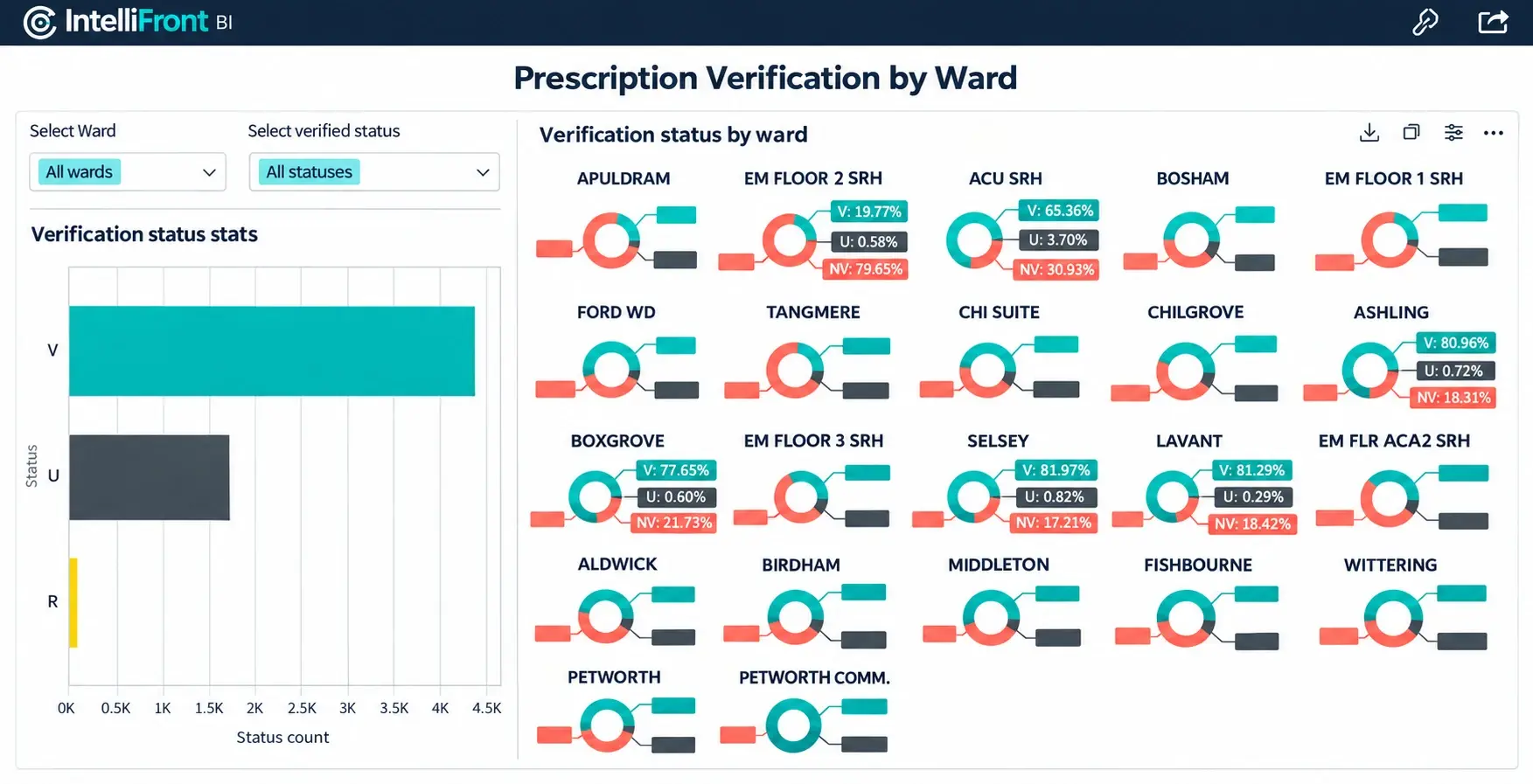
The illustration shows how IntelliFront BI can present verification figures for several wards. Our pharmacist needs an additional piece of information: which current item needs review and why. Give them the item reference beside the reason so they can find it in the prescribing system.

Prescription verification dashboard showing counts by ward and controls for ward and verification status
Ward verification summaries. View the complete dashboard and its ward and status selectors.

Try the selection with the pharmacist. Ask them to choose Ward A, check that the count agrees with its list and find R-27. Once they can do that, follow what happens when they record the review.

Give the reader a clear handoff

Keep the current-item reference easy to find. It connects the reporting row with the record where the pharmacist continues the review.

  
COMPLETE THE JOURNEY

Follow the Item Through Its Next Review

At 09:05, the pharmacist records a review of the changed item. The next file includes records through 09:15, including that review. The dashboard reads the file at 09:20 and R-27 drops off the list. The earlier review and change are still in the item’s history.

Between the review and the update, the pharmacist may still see R-27 on the list. The time label explains why: the dashboard is still reading the 09:00 data. When the new file arrives, the label should say it includes records through 09:15.

Ask a pharmacist to try this with a known item. It should appear when a change needs review and disappear when the dashboard receives the applicable review. Try a replacement or a discontinued item too, using the results the pharmacy team expects. If the dashboard can’t load the list, show that clearly so an empty screen doesn’t look like there’s nothing to review.

If your team needs a shared view of prescriptions awaiting review across wards, see NHS prescription review dashboards.

Contributors:

Christian Ofori-Boateng

Christian Ofori-Boateng

CEO, ChristianSteven Software