

POWER BI QUESTIONS

How to Export Power BI Data to Excel with Power Automate

To export Power BI model data to Excel with Power Automate, run a query against the semantic model, copy an XLSX template and write the returned rows into its Excel table. Standard report Export to File produces PDF, PowerPoint or PNG; it cannot create this workbook.

The example below builds a small monthly sales extract and checks the finished file before delivery. If your job is repeatedly exporting selected report visuals instead, PBRS can repeat those selections, workbook settings and delivery. Choose the route that matches the data you need.

  
THE DIRECT ANSWER

Use the Query Action for an Excel Data Extract
A monthly extract should have a clear agreement: which rows belong in it, how values should be stored and what proves that nothing is missing. Here we use five columns—SaleId, Region, ReportMonth, Amount and DiscountRate—for September 2026.

Required output Action and next step Result
Model rows Run a query against a dataset, then write an Excel table A defined data extract
Standard report pages Export To File for Power BI Reports PDF, PowerPoint or PNG
Rendered paginated report Export To File for Paginated Reports with XLSX Paginated Excel rendering

The Power BI connector reference lists these separately. A model query does not inherit an open report’s slicers or transfer its page layout into Excel. Put the reporting scope into the query.

This workflow creates a new file in OneDrive for Business for each run and adds rows sequentially. An approved SharePoint document library can host the same Excel Online Business workflow. For a standard-report PDF instead, follow Microsoft’s report export integration guide and its capacity requirements.

Choose the right starting action

Model rows: Query the data you need in the workbook.

Report pages: Use the separate page-rendering action.

Scope: Specify the period and filters in the query.

Output: Give every run its own workbook.

  
REQUIREMENTS AND LIMITATIONS

Prepare Model Access and an Empty Excel Table

Check the flow’s Power BI connection, not just your personal access. It needs Read and Build permissions, and the tenant’s Dataset Execute Queries REST API setting must be enabled. The query API requirements exclude models hosted in Azure Analysis Services or live-connected to on-premises Azure Analysis Services. Use the account’s authorized data scope, including applicable row-level security. Establish expected counts and totals from an approved baseline.

Prepare a valid XLSX in OneDrive for Business or SharePoint with an empty named table, ExportRows, and the five headers above. Format SaleId and ReportMonth as text, Amount as numeric and DiscountRate as a percentage. Keep the template unchanged; the flow will write a new copy.

Use the Synthetic Sales Template, Synthetic Sales Expected Output and Synthetic Query Response to inspect the mapping. The template has an empty ExportRows table; the expected workbook has four records. These synthetic files contain no customer data. Their local values and saved workbook were checked; no cloud flow was executed.

Execute Queries accepts one query and one result table per call, with at most 100,000 rows or 1,000,000 values, whichever comes first, and 15 MB of returned data. Limited data and an error can accompany HTTP 200. The Excel Online Business connector has a 25 MB workbook limit and 5 MB request limit. Confirm destination write access and use one writer; concurrent modifications are unsupported. These ceilings do not promise efficient large row-by-row exports.

Prepare a small controlled run

Access: Confirm the flow connection’s Read and Build permissions.

Table: Create ExportRows inside an actual XLSX.

Types: Keep identifiers as text and measures numeric.

Size: Check query, request and workbook limits separately.

  
END-USER WORKFLOWS

Build the Query-to-Workbook Flow in Separate Steps

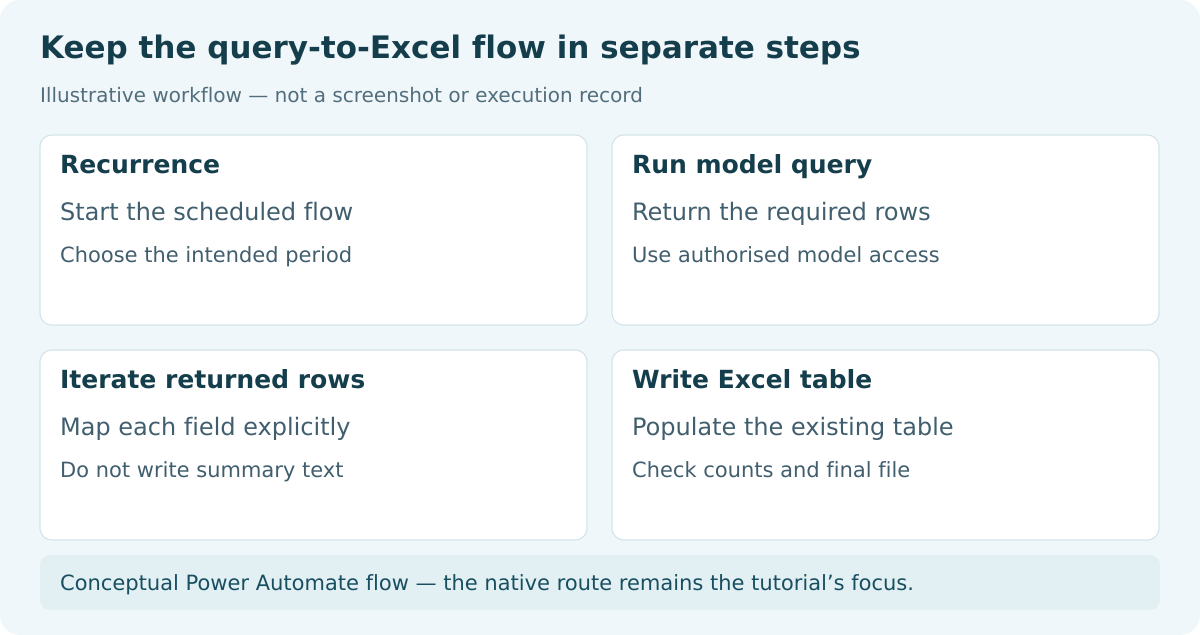
Illustrative diagram: Keep the query-to-Excel flow in separate steps. Recurrence: Start the scheduled flow. Run model query: Return the required rows. Iterate returned rows: Map each field explicitly. Write Excel table: Populate the existing table.

Conceptual Power Automate flow — the native route remains the tutorial’s focus.

Build the flow in stages so you can inspect the query before distributing a file.

  1. Create a scheduled cloud flow with Recurrence. Set the time zone and reporting window. Leave recurring execution disabled during testing; its timestamp does not prove the model refreshed.
  2. Add Power BI > Run a query against a dataset. Select the actual Workspace and Dataset, enter the query below with your schema, and set Nulls included to Yes.
  3. Test the query step. Inspect errors, rows and expected controls. Its First table rows output, documented as firstTableRows, supplies the later loop.
  4. Read the template file content with the storage connector and create a new XLSX in the approved destination. Include the reporting period and run identifier in its name.
  5. Give Excel Online Business the newly created file’s identifier. Confirm ExportRows is available. Do not leave the template’s identifier in the writing action.
  6. Add Apply to each over First table rows. Keep it sequential. Inside the loop, use Add a row into a table for the new file and ExportRows, with the mappings in the next chapter.
  7. After writing finishes, read back the table and check identifiers, row count and Amount total. Allow for the documented write delay.
  8. Retrieve and distribute the file only when those checks pass. Keep a failed or uncertain output out of delivery.
Illustrative DAX: replace Sales and its columns with your model schema.
EVALUATE
SELECTCOLUMNS(
  FILTER(Sales, Sales[ReportMonth] = "2026-09"),
  "SaleId", Sales[SaleId],
  "Region", Sales[Region],
  "ReportMonth", Sales[ReportMonth],
  "Amount", Sales[Amount],
  "DiscountRate", Sales[DiscountRate]
)
ORDER BY [SaleId]

This query has not been executed against a live model. It selects the columns and period explicitly. Check that SaleId identifies one required record: duplicates may indicate duplicate source rows or a finer legitimate level of detail that needs another key.

Inspect each stage before proceeding

Identifiers: Use the intended model and newly created output file.

Array: Loop over First table rows.

Writing: Keep the loop sequential.

Delivery: Require a complete, checked workbook.

  
DEVELOPER AND API WORKFLOWS

Map Values and Check the Finished XLSX

SELECTCOLUMNS aliases return with brackets. Map the five Excel columns from [SaleId], [Region], [ReportMonth], [Amount] and [DiscountRate]. For Amount, an expression within Apply to each can read item()?['[Amount]']. Preserve the brackets in the property name.

Pass Amount and DiscountRate as numbers. With percentage formatting, 0.0123 displays as 1.23%. Test how the flow maps a source null to a blank cell, keeping it distinct from zero. Inspect the saved identifier too: 0001 must remain text rather than becoming 1.

The synthetic response has IDs 0001–0004, two North records and two South records, all for 2026-09. Amounts 1,200, 800, 900 and 600 total 3,500, with no currency assigned. The expected workbook stores text IDs and numeric amounts; one discount is zero and one is blank from a source null. Those checks establish the local fixture mapping, table and file. A controlled cloud run must still verify authentication, DAX execution, connector timing and delivery. Retain its run history and output.

Excel writes may take up to 30 seconds to appear, and file locks can last up to six minutes. Retries can insert duplicates. Check both missing and duplicate rows. List rows present in a table returns up to 256 rows by default; enable pagination when the expected table is larger.

After resolving a failure, deliberately rerun this append-only example into a fresh file. Appending the entire response to an uncertain partial workbook can duplicate records. Reconcile that output and stop delivery whenever validation fails.

When the workbook can come from PBRS

If your recurring requirement is a workbook from selected report visuals, compare this flow with a PBRS Excel job. Configure the required visuals, export type and template placement once, then let the application call that saved schedule. The PBRS Excel API guide covers the workbook settings.

For the September sales handoff, retain the same checks for IDs 0001–0004, zero versus blank discounts and the 3,500 Amount total. First establish that the selected visual actually supplies those records. PBRS visual export is a different source from the flow’s DAX query; it does not automatically execute that query or remove its limits.

The backend uses POST /api/Schedule/ExecuteScheduleAsync for the approved job and follows its returned ExecutionId through GetExecutionStatus. Check the execution result and received XLSX using the PBRS execution workflow. This is useful when you want PBRS to own the repeated workbook generation and delivery, while the application keeps control of access and the reporting period.

Choose the workbook route and protect its values

Flow mapping: Use the exact bracketed aliases and preserve text IDs, numeric amounts, zero and blank cells.

PBRS alternative: Use selected-visual Excel output only when it supplies the required sales rows; retain the template and destination settings.

Acceptance: Check unique IDs, counts and the 3,500 reference total in the actual delivered file.

Recovery: Investigate a partial flow write or uncertain PBRS run before repeating delivery; a fresh flow file avoids duplicating appended records.

  
CHOOSE YOUR NEXT STEP

Enable Recurrence After a Controlled Cloud Run Passes

For the synthetic example, a passing cloud output has four unique text IDs, four data rows, September 2026 and an Amount total of 3,500. Check the zero discount, blank discount and percentage display in the retrieved XLSX, as well as the flow’s action results.

Then enable recurrence and retain the query, template version, output identifier and validation record. When the model schema changes, review the mappings. When the period changes, update both the query scope and expected controls.

For recurring data from selected visuals, consider PBRS report automation and the separate Excel automation workflow. Return to Power BI Questions for other export tasks.

Considering PBRS as an alternative for recurring Excel delivery? Share the guide with your colleagues to review deployment, licensing, security and your reporting requirements.

Download the PBRS Internal Evaluation Guide

Contributors:

Christian Ofori-Boateng

Christian Ofori-Boateng

CEO, ChristianSteven Software